Portable & Installed Architecture
DevsFTP operates as an offline-first desktop client engineered for zero remote telemetry, local configuration containment, and air-gapped security compliance. The runtime detects and initializes two distinct storage environments:
Installed Mode (Default Desktop Workflow)
When running from the standard Windows installer, user profiles, session states, local edit caches, and automation schedules are isolated inside the operating system user application directory:
%APPDATA%\DevsFTP\
Portable Mode (Zero-Footprint USB Operation)
DevsFTP detects portable drive operations automatically. If a folder named .devs_userData exists alongside the application executable, DevsFTP redirects all configuration, key storage, logs, and temp caches into that directory. No files or registry entries are written to the host computer.
D:\DevsFTP\
├── DevsFTP.exe
└── .devs_userData\
├── .master_key
├── profiles.json
├── devsftp_exclusion_prefs.json
├── scheduled_jobs.json
└── devsftp_edit_cache\
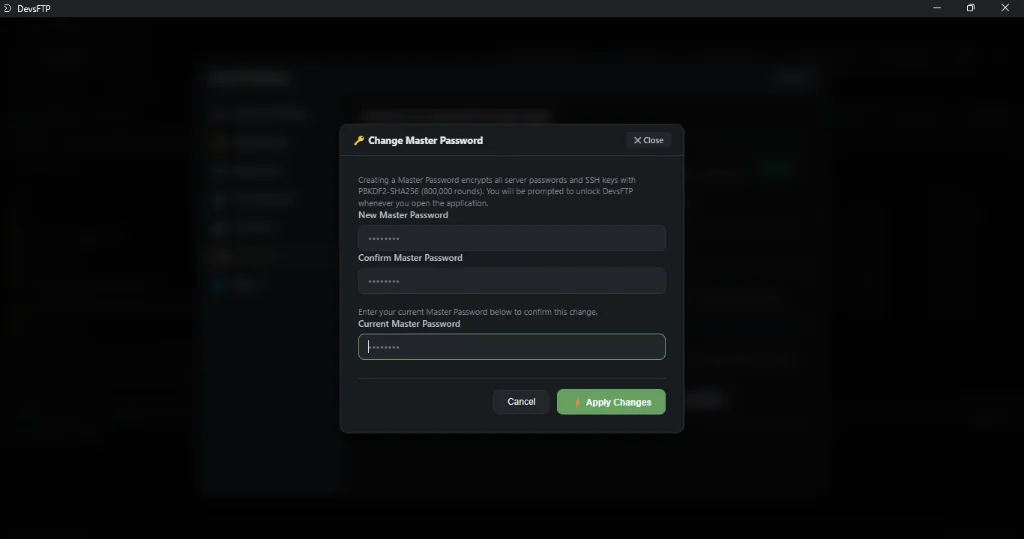
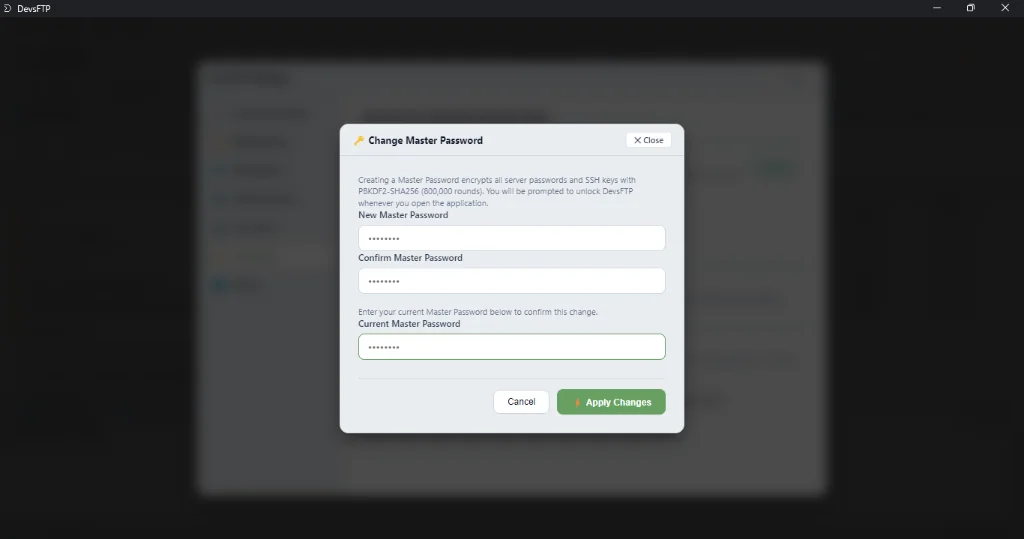
Master Password Vault Cryptography
Credentials never leave your physical workstation. DevsFTP enforces hardware-offline symmetric cryptography to protect SSH private keys, cloud access secrets, and server passwords from memory dump attacks and unauthorized file system extraction.
Cryptographic Architecture Specification
All sensitive secrets are encrypted using authenticated symmetric encryption. Modifying or tampering with encrypted payloads causes instant authentication tag rejection, protecting stored credentials against bit-flipping attacks.
- Key Derivation Function: PBKDF2 with 800,000 iterations using SHA-256 and a cryptographically secure random 32-byte salt (
crypto.randomBytes(32)). Exceeds OWASP 2026 password storage recommendations.
- Authenticated Cipher: AES-256-GCM (Galois/Counter Mode). Each encryption operation generates a unique 12-byte initialization vector (IV) and outputs a 16-byte authentication tag.
- Serialized Payload Spec: Stored as three colon-delimited hexadecimal strings:
[IV_HEX]:[AUTH_TAG_HEX]:[CIPHERTEXT_HEX].
- Default Mode: When Master Password protection is disabled, DevsFTP generates a high-entropy 32-byte random key stored locally in
.master_key with strict file system ACL permissions (0o600).
const salt = crypto.randomBytes(32);
const key = crypto.pbkdf2Sync(masterPassword, salt, 800000, 32, 'sha256');
const iv = crypto.randomBytes(12);
const cipher = crypto.createCipheriv('aes-256-gcm', key, iv);
let encrypted = cipher.update(secretText, 'utf8', 'hex');
encrypted += cipher.final('hex');
const authTag = cipher.getAuthTag().toString('hex');
const vaultField = `${iv.toString('hex')}:${authTag}:${encrypted}`;
Connection Profile Schema & Storage
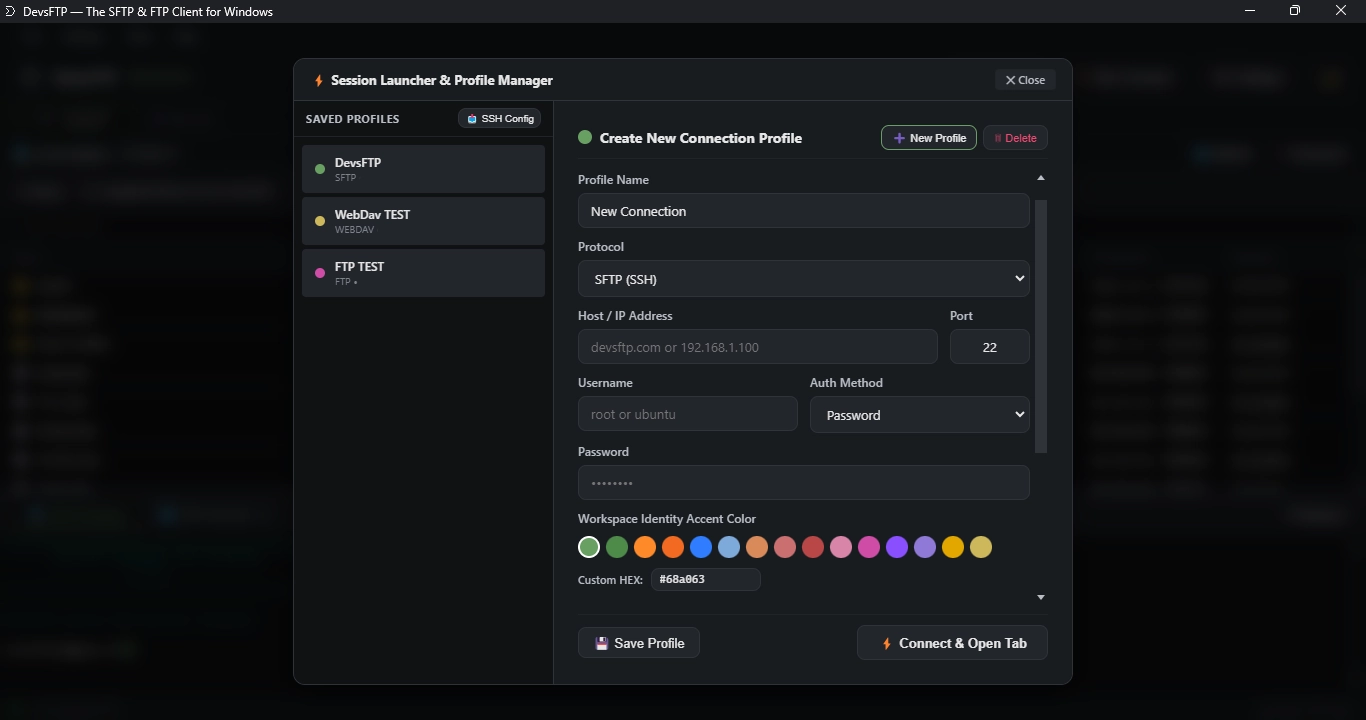
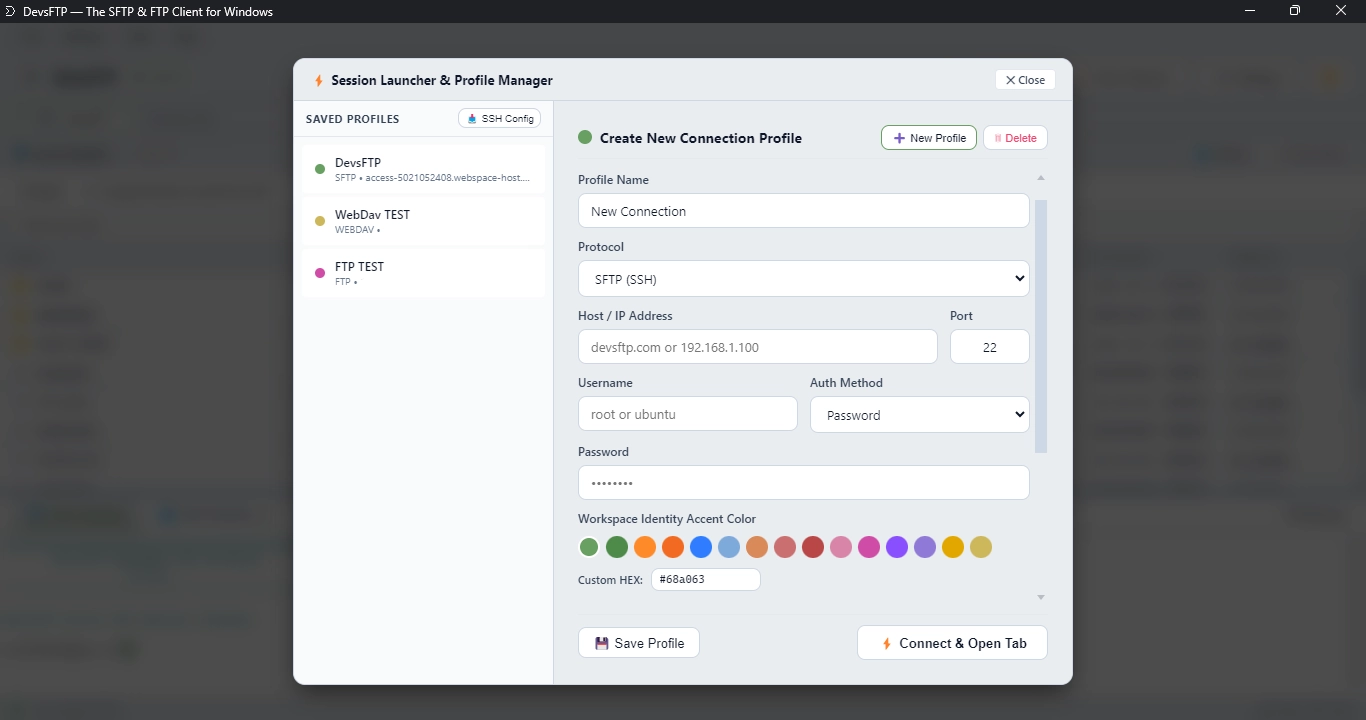
Profiles are stored locally inside profiles.json. Passwords and SSH key passphrases are always stored in encrypted GCM vault format, while non-sensitive connection parameters (host, port, username, theme accent) remain readable for instant indexing and connection grouping.
{
"id": "prof_sftp_production",
"name": "AWS Production Cluster",
"protocol": "sftp",
"host": "198.51.100.24",
"port": 22,
"username": "deploy",
"authType": "key",
"privateKeyPath": "C:\\Users\\dev\\.ssh\\id_ed25519",
"password": "",
"passphrase": "e3b0c4...:8b2a1c...:f904a...",
"accentColor": "#EF4444",
"remotePath": "/var/www/production",
"localPath": "D:\\Projects\\ClientApp"
}
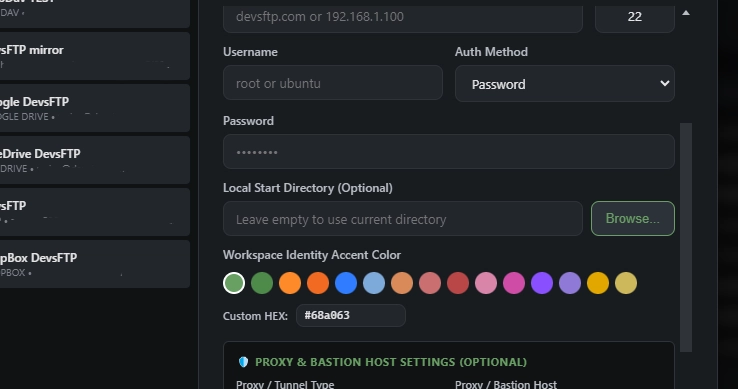
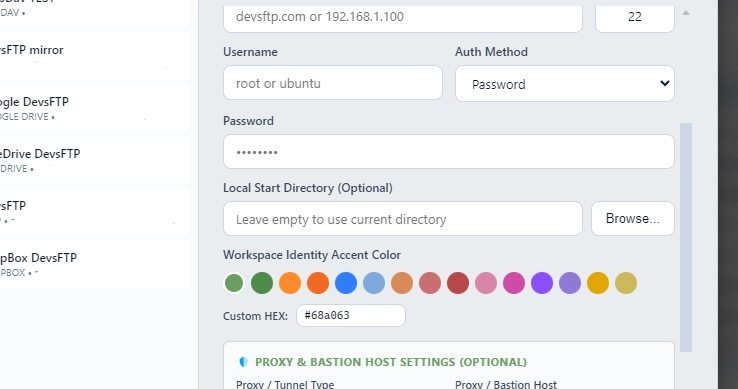
Profile Local Start Directory (localPath)
Every profile can define an optional localPath linking the remote server to a specific local repository on your machine. When specified, connecting to that profile automatically switches the local file manager panel to that directory:
Clicking the Browse... button beside the field invokes the native operating system directory chooser dialog, ensuring absolute path accuracy across Windows drive letters and POSIX filesystem roots.
Corruption Recovery Engine
If a catastrophic operating system reboot causes partial writes to profiles.json, the loader isolates the unparseable file as profiles.json.corrupt-[timestamp] and prohibits automated overwrite routines until manual recovery or rollback occurs.
Amazon S3 & S3-Compatible Object Storage
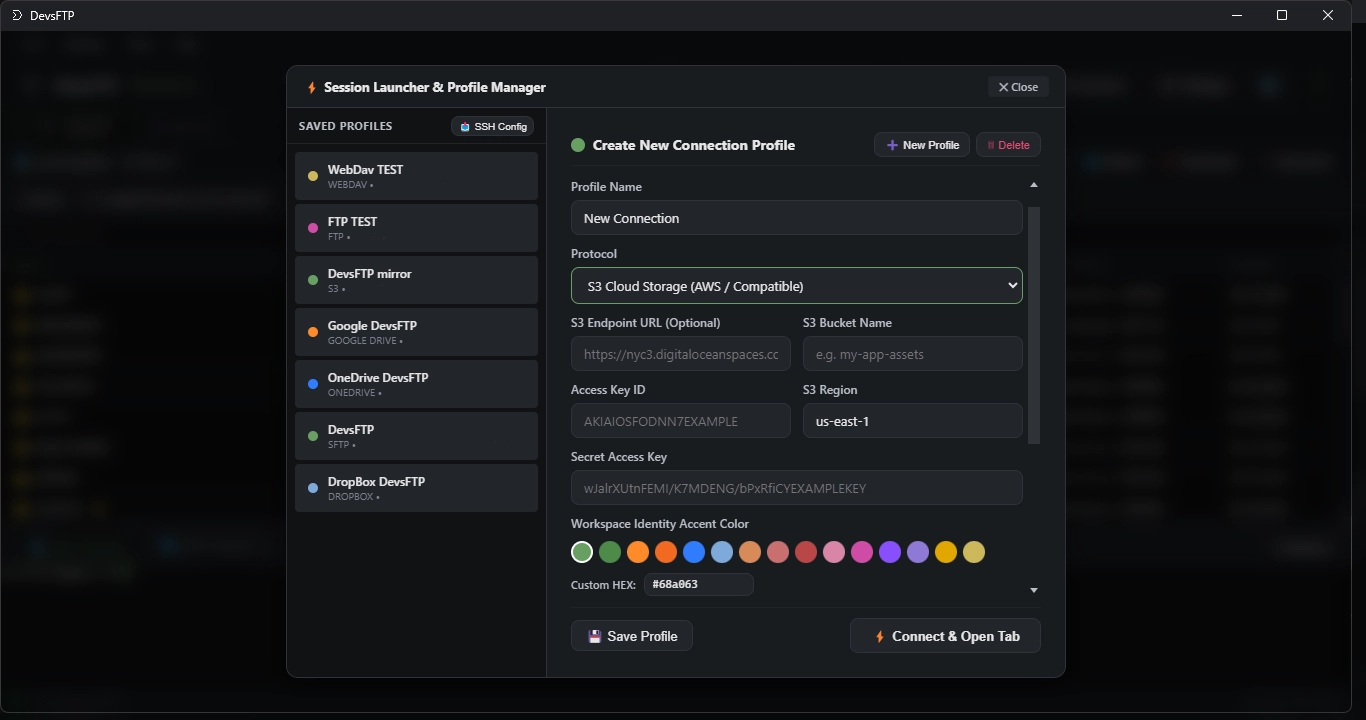
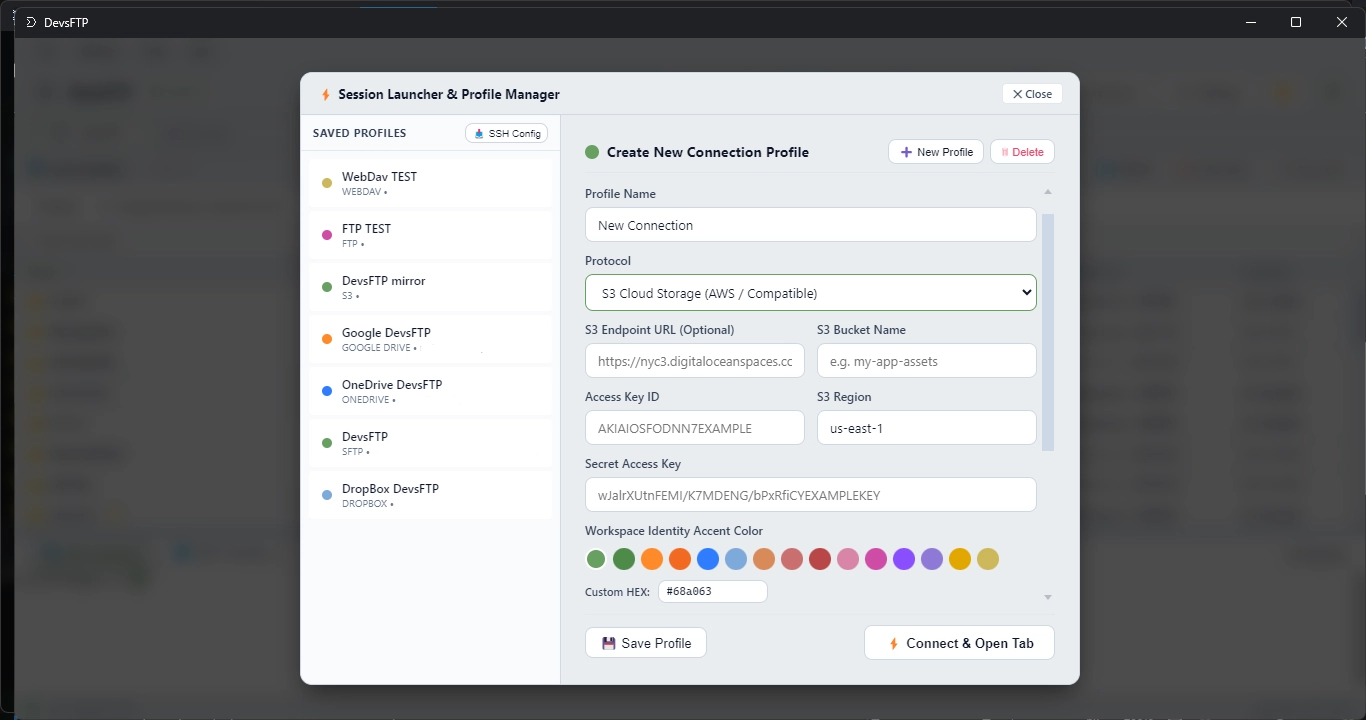
DevsFTP connects directly to Amazon S3 and S3-compliant object storage services with native AWS Signature Version 4 (SigV4) request signing. Requests are signed in memory using HMAC-SHA256 before network transmission.
S3 Provider Compatibility
Specify the service endpoint URL and region for your target cloud provider:
| Cloud Provider |
Endpoint URL Template |
Region String |
| Amazon Web Services (AWS) |
https://s3.<region>.amazonaws.com |
us-east-1, eu-central-1 |
| Cloudflare R2 |
https://<account-id>.r2.cloudflarestorage.com |
auto |
| Backblaze B2 |
https://s3.us-west-004.backblazeb2.com |
us-west-004 |
| Wasabi Hot Cloud |
https://s3.wasabisys.com |
us-east-1 |
| MinIO (Local Dev / On-Prem) |
http://localhost:9000 |
us-east-1 |
OpenSSH Config Import & Bastion Host (ProxyJump)
Developers managing distributed cloud infrastructure can import existing hosts directly from standard OpenSSH configuration files (~/.ssh/config or /etc/ssh/ssh_config). DevsFTP automatically parses host directives into structured profiles with custom ports and key bindings.
Host staging-api
HostName 203.0.113.88
User ubuntu
Port 2222
IdentityFile ~/.ssh/id_rsa
Host internal-db
HostName 10.0.4.15
User postgres
IdentityFile ~/.ssh/id_ed25519
ProxyJump bastion.example.com:22
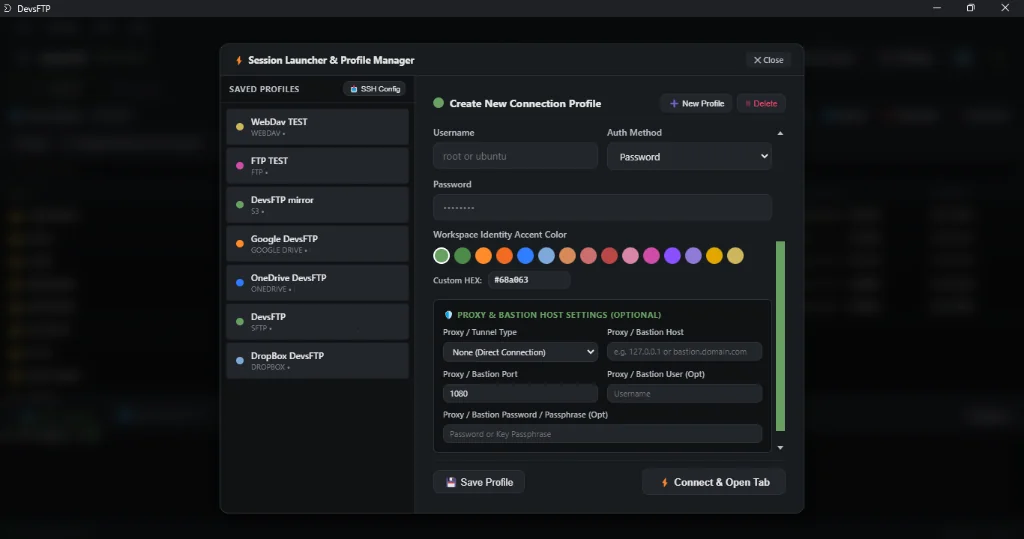
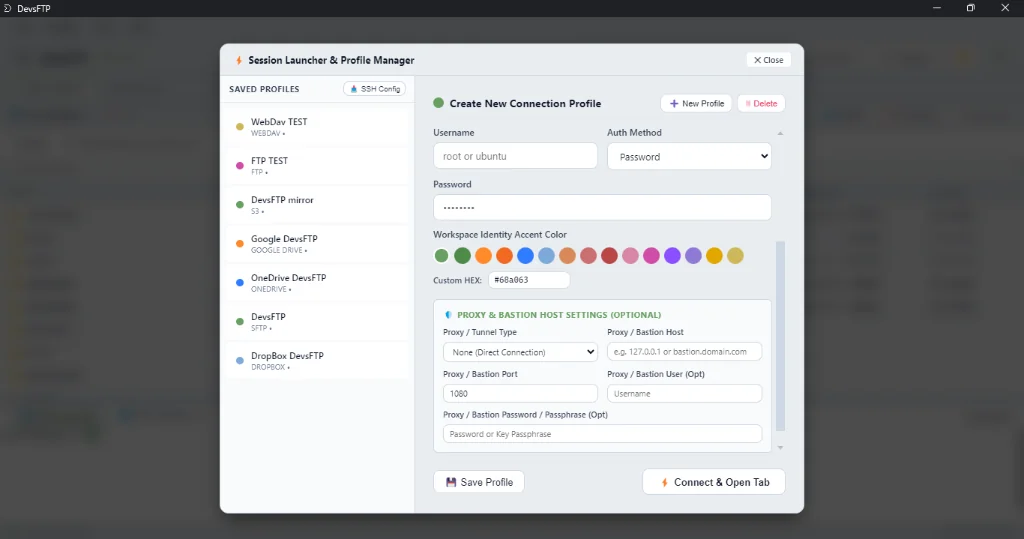
Proxy & Bastion Host Architecture
When connecting to protected private subnets (VPC / VPN) or corporate networks, DevsFTP provides native jump routing without requiring external SSH wrapper terminals:
- SSH Bastion Host (Jump Box / ProxyJump): Connects to an intermediate bastion gateway via SSH, authenticates with passwords or private keys, and streams non-blocking
forwardOut TCP sockets directly to the protected target host.
- SOCKS5 / SOCKS4 Proxy Traversal: Routes SFTP connections through enterprise SOCKS proxies with optional username and password authentication.
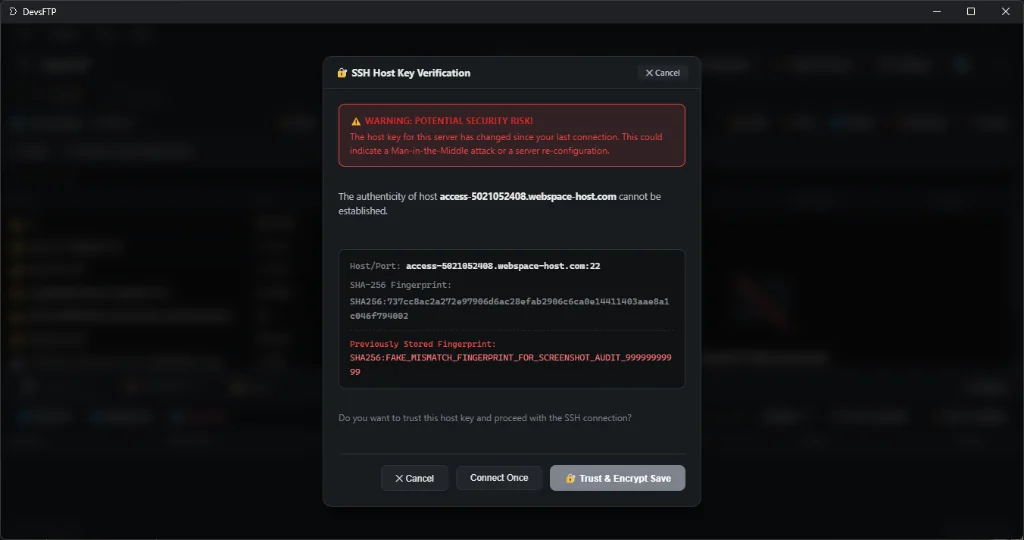
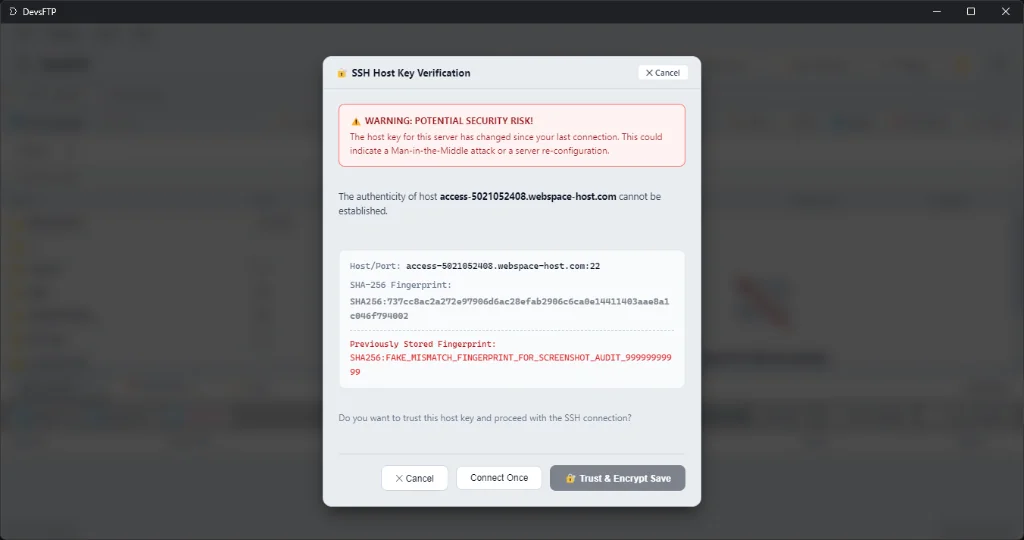
Host Key Verification & Anti-MITM Defense
DevsFTP protects against Man-in-the-Middle (MITM) spoofing by cryptographically matching host key signatures against known_hosts.json. If a remote server's fingerprint changes or differs from stored keys, DevsFTP halts the connection pipeline and prompts the developer with a security warning before any credentials or payloads are transmitted:
Workspace Isolation & Environment Accents
To prevent accidental modification of production codebases, DevsFTP features per-profile accent theming. Each connection profile can be assigned a custom accent color (HEX) that visually permeates the interface during an active session.
DevsFTP calculates dynamic CSS variables across buttons, breadcrumbs, selection rings, and status badges. Assigning #EF4444 (Red) to a production cluster immediately alerts developers of live environment writes.
Server-Side Remote Execution Utilities
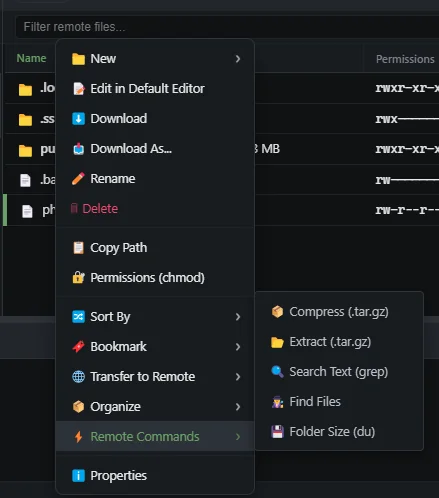
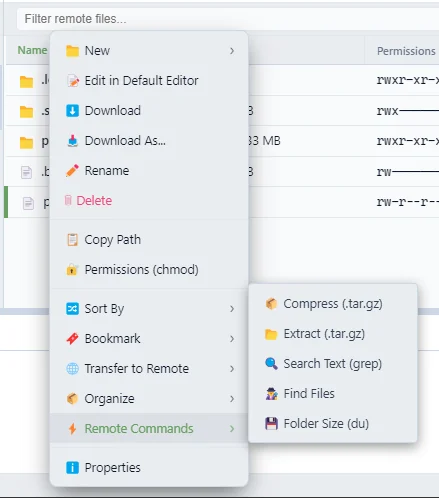
Traditional SFTP clients require downloading multi-gigabyte directories just to perform basic archive, search, or size operations. DevsFTP features non-interactive server-side command execution via the SSH exec subsystem directly from the context menu.
cd /var/www/project && tar -czf "backup-2026.tar.gz" "uploads"
cd /var/www/project && tar -xzf "archive.tar.gz"
cd /var/www/project && unzip -o "bundle.zip"
grep -rn "DATABASE_URL" /var/www/project/src
find /var/www/project -name "*.env"
du -sh /var/www/project/node_modules
All command arguments are POSIX-escaped to prevent shell injection, and execution outputs (exit codes, stdout, stderr) stream directly to the Protocol Log Drawer.
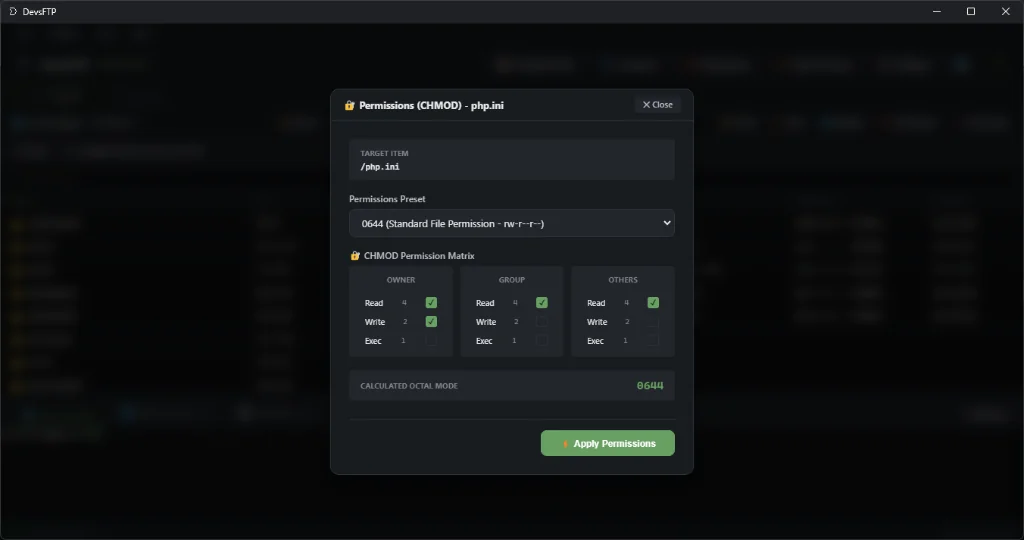
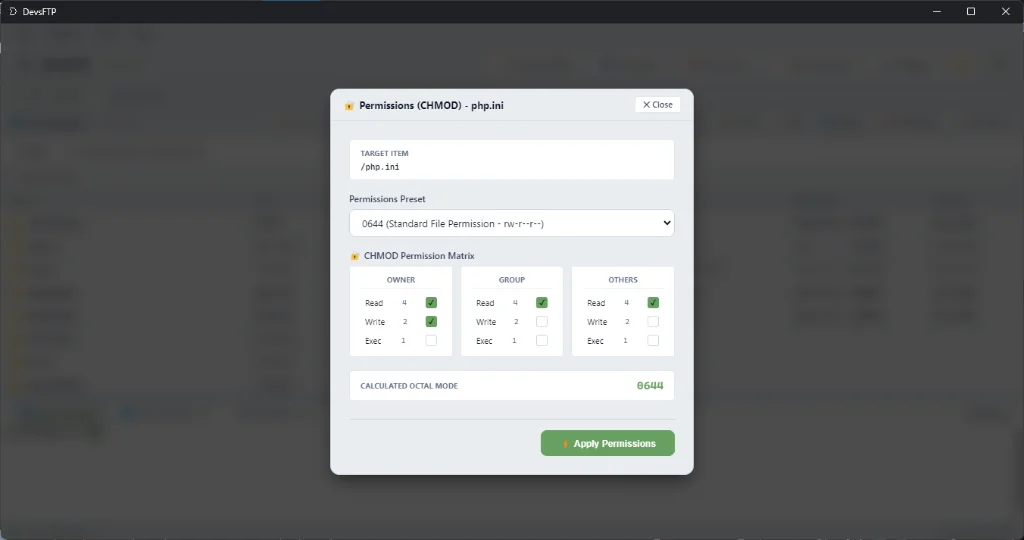
Visual CHMOD Permission Matrix
DevsFTP eliminates the guesswork of Unix octal permissions by providing an interactive permission matrix modal for files and folders across remote SFTP and FTP servers.
Owner: [✓] Read (4) + [✓] Write (2) + [✓] Exec (1) = 7
Group: [✓] Read (4) + [ ] Write (0) + [✓] Exec (1) = 5
Others: [✓] Read (4) + [ ] Write (0) + [✓] Exec (1) = 5
Resulting Mode: 0755 • POSIX String: "rwxr-xr-x"
Built-in Presets
Quickly apply standard production security presets: 0644 for web files, 0755 for scripts and directories, or 0600 for private keys and environment files.
Smart Exclusion Rules & Ignore Filter Engine
Prevent accidental uploads of development dependencies, version control data, and unencrypted secrets. DevsFTP processes global pattern rules stored in devsftp_exclusion_prefs.json and recursively honors local workspace .gitignore rules.
{
  "enabled": true,
  "honorGitignore": true,
  "patterns": [
    ".git",
    ".gitignore",
    "node_modules",
    ".env",
    "vendor",
    ".DS_Store",
    "Thumbs.db",
    "*.tmp",
    "*.log",
    "*.bak"
  ]
}
The engine compiles wildcards into regex patterns with boundary detection (/(^|[/\\])pattern([/\\]|$)/i), ensuring that exclusions match entire path components without erroneous substring hits.
External Editor Watcher & Sidecar Manifests
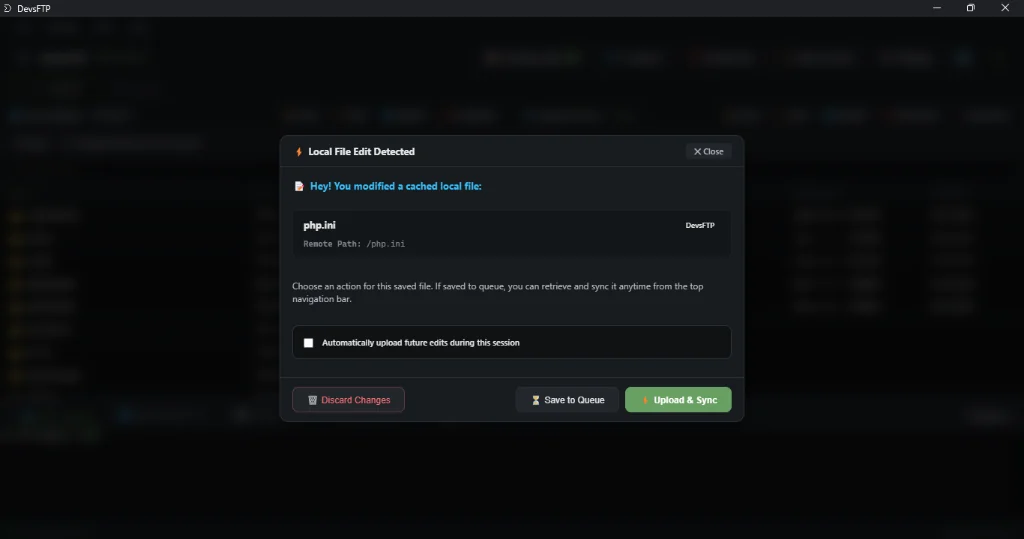
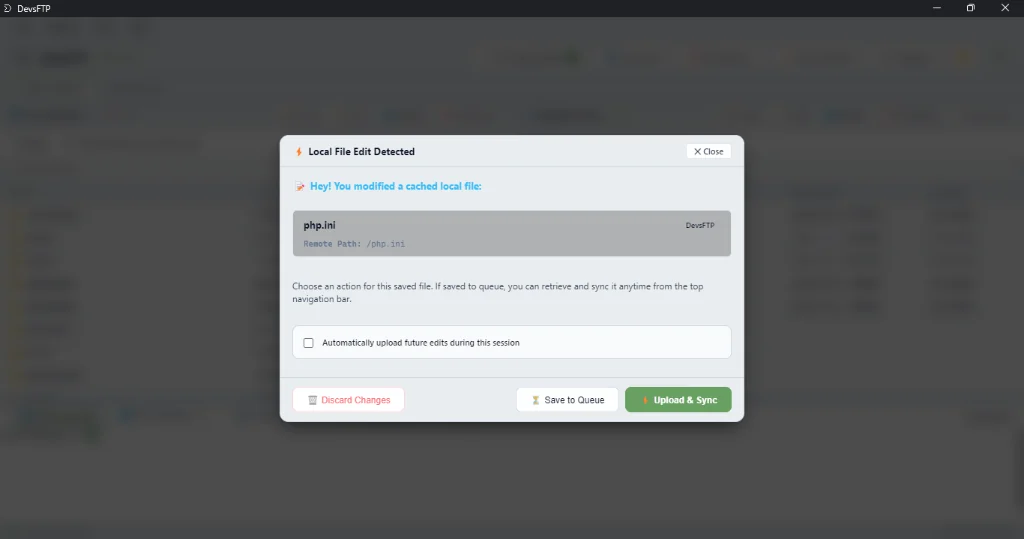
Edit remote files with zero latency in your preferred desktop code editor (VS Code, Notepad++, Sublime Text). DevsFTP mounts cached files into temporary staging storage and watches for system save signals using the chokidar filesystem watcher.
{
"version": "1.0",
"profileId": "prof_sftp_production",
"remotePath": "/var/www/html/config.php",
"originalSha256": "9f8332b1236460d71701cedb45ebb1cb598f55d93b8097d15d06c47d907051b4",
"mtime": 1774218845000,
"permissions": 420
}
- SHA-256 Collision Verification: Uploads trigger only if the file's cryptographic hash has genuinely changed on disk.
- Startup Recovery: If the app terminates while external files are open in an editor, DevsFTP re-attaches watchers automatically on restart.
Directory Compare & Delta Sync
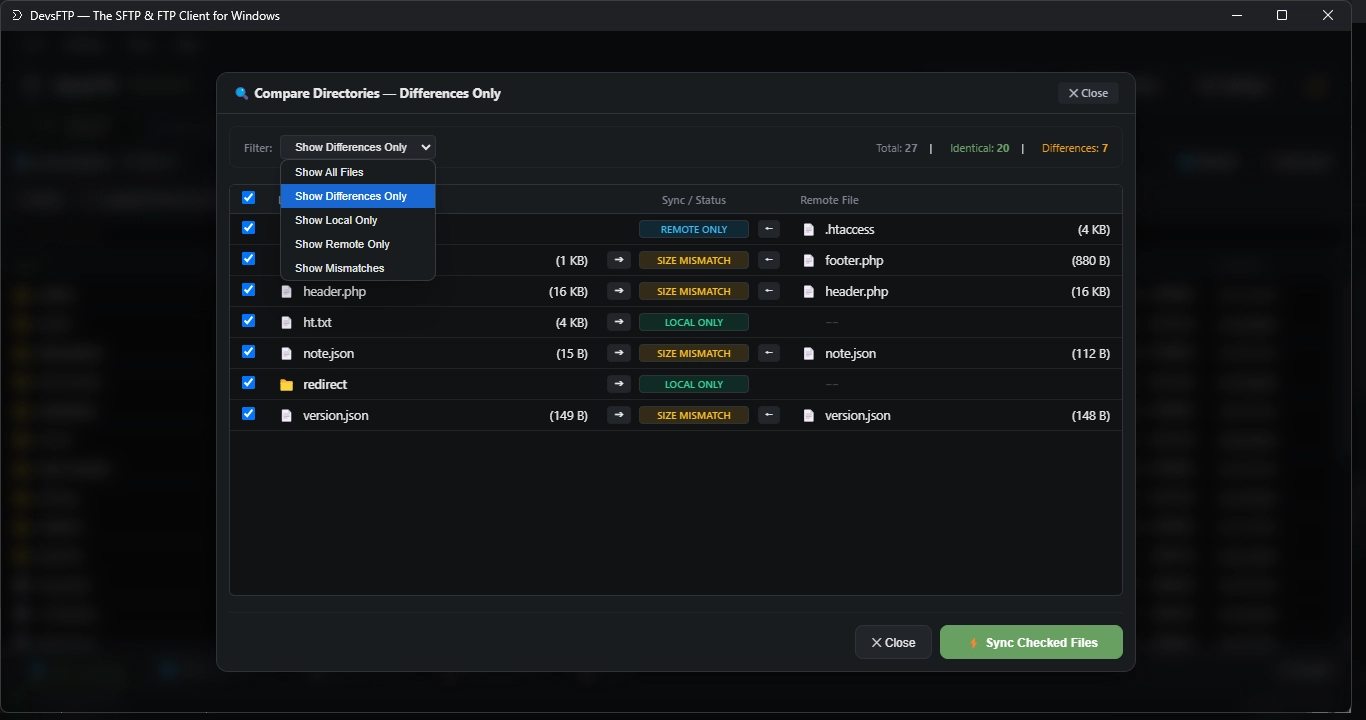
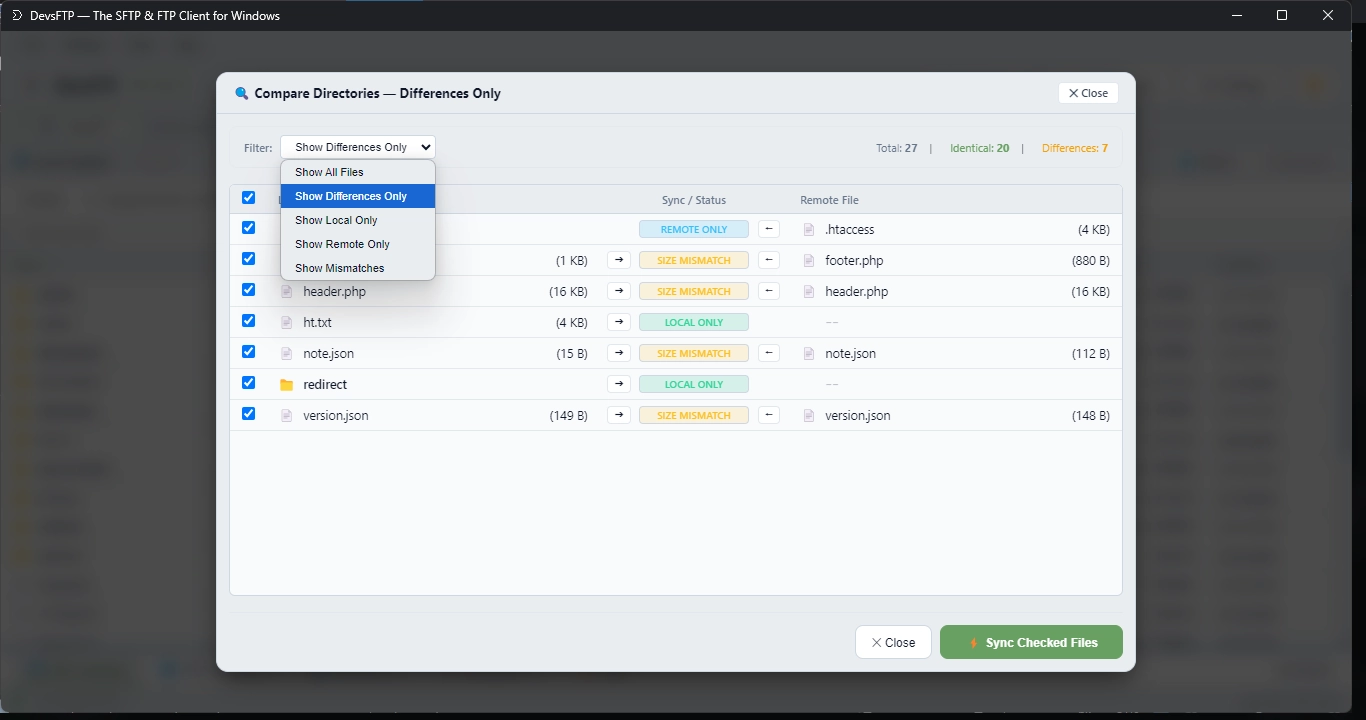
Audit local and remote workspace differences in a side-by-side modal. DevsFTP compares filenames, byte sizes, and timestamps to tag each item with an actionable delta state.
- Local Newer (Green): Local timestamp is newer than remote. Click
➔ to upload update.
- Remote Newer (Blue): Remote server file contains newer changes. Click
🠔 to pull update.
- Size Mismatch (Yellow): Same timestamp but differing byte sizes, indicating unsynced manual changes.
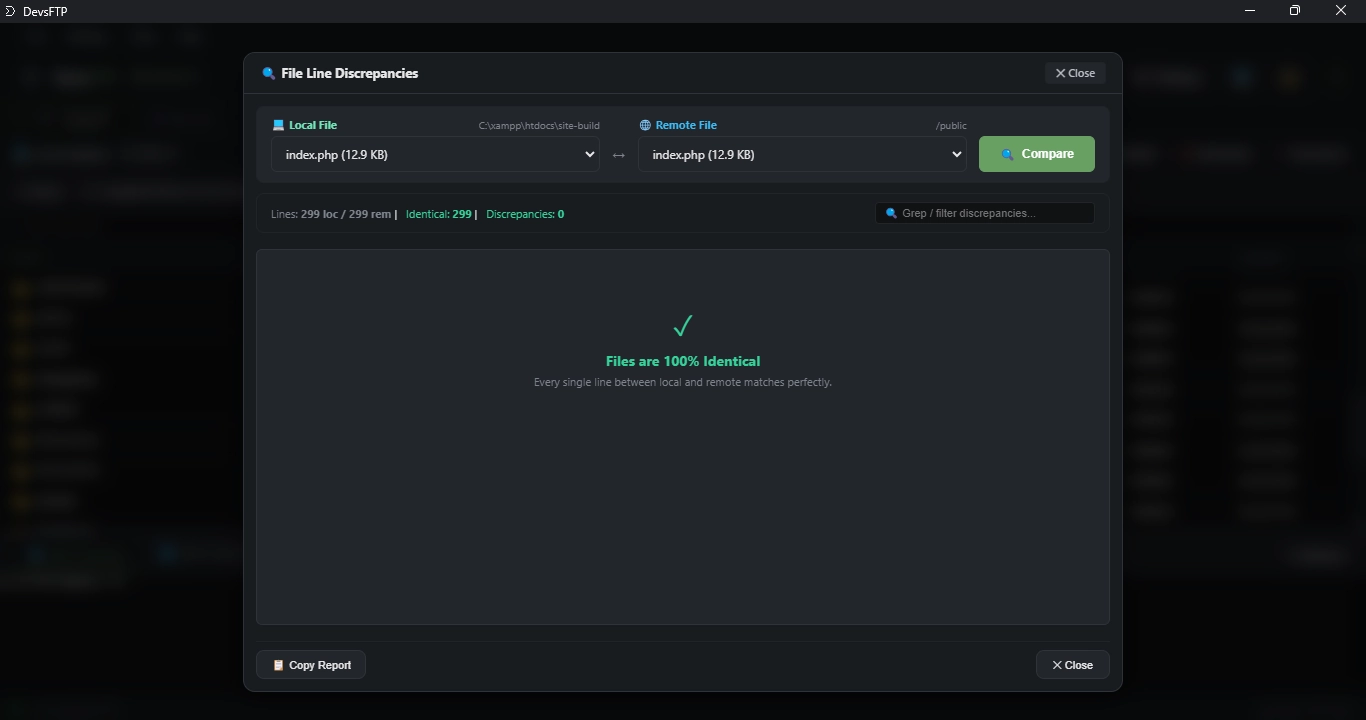
Line-by-Line File Discrepancy & Diff Engine
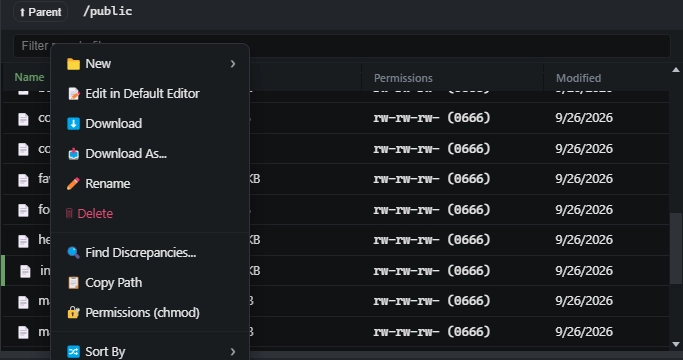
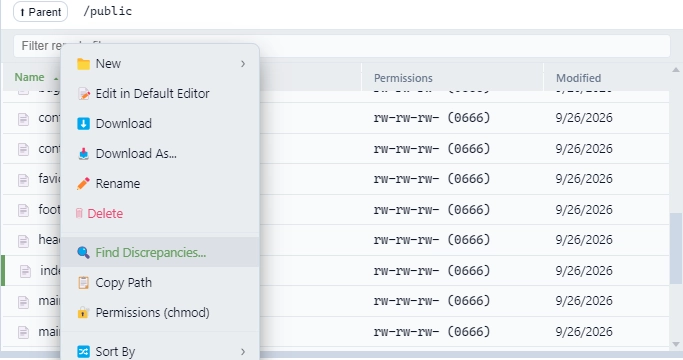
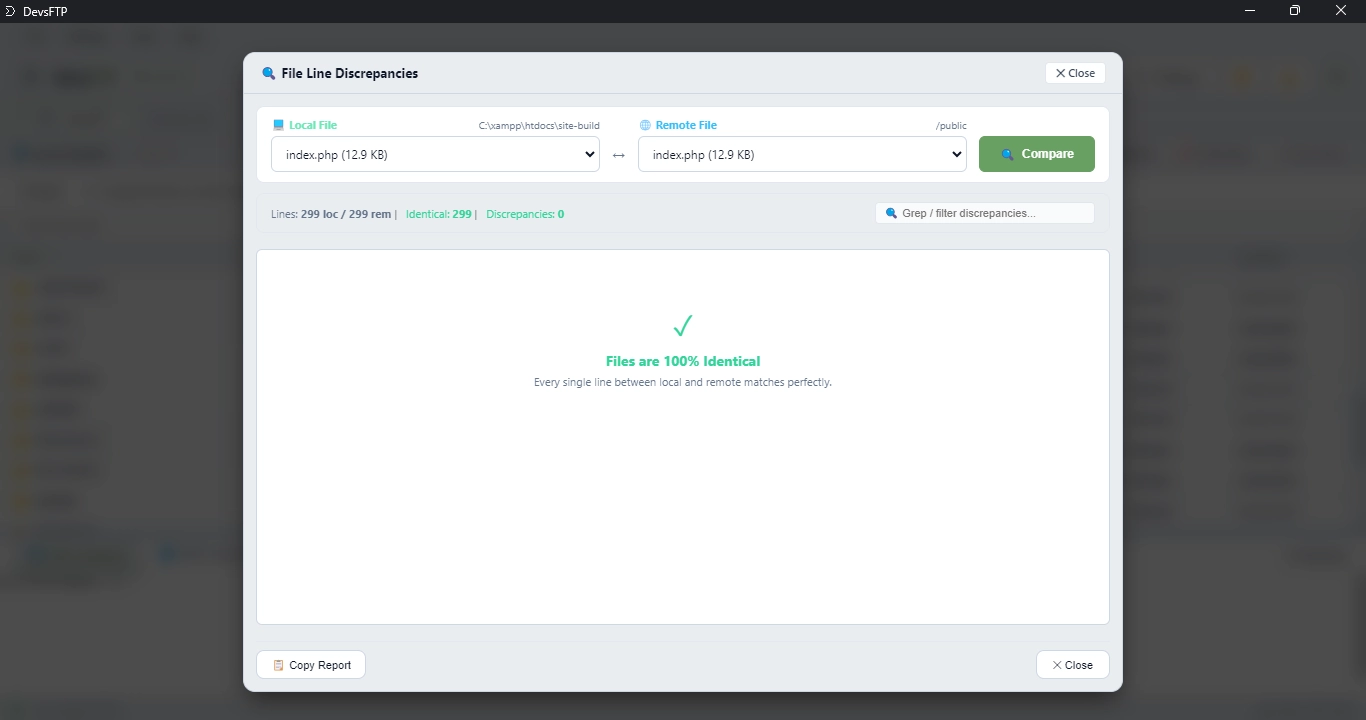
Inspect granular differences between local and remote code or text files directly inside DevsFTP without requiring external diff utilities. Right-click any file in the dual-pane file browser to access the Find Discrepancies command, or trigger comparisons directly from Directory Compare delta audit rows. The discrepancy viewer pairs lines using an optimized Longest Common Subsequence (LCS) algorithm to visualize additions, deletions, and line-level changes with exact line numbers.
Real-Time Grep Search Filtering
The integrated search bar filters diff lines in real time across modifications, additions, and deletions. Developers can input literal tokens, method signatures, or regular expressions to isolate specific discrepancies across large production codebases.
Memory Guard & Binary Protection
- Binary Detection: Automatically scans the first 8,000 bytes for null characters (
\0) to reject compiled binaries, archives, and images safely.
- 15 MB Memory Guard: Enforces a strict 15 MB pre-download verification on remote files before streaming buffers into memory, protecting the runtime against out-of-memory crashes.
- One-Click Export: Copies formatted Markdown inspection reports to the clipboard with unified diff hunks, file paths, and timestamps.
Remote-to-Remote Transfer Pipeline
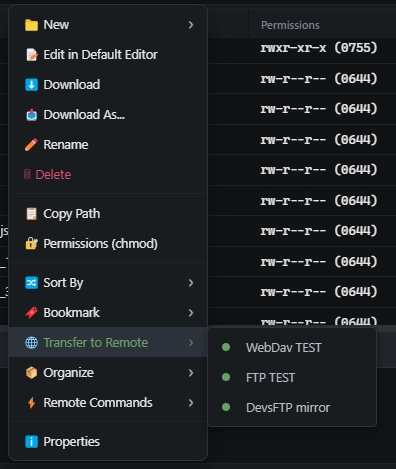
Transfer directories and files directly between two remote endpoints (e.g., SFTP ➔ Amazon S3, Google Drive ➔ SFTP, WebDAV ➔ OneDrive) without downloading files to your physical disk.
DevsFTP pipes streaming data buffers in memory between transport sockets, eliminating disk wear and saving local storage.
Embedded SSH Terminal Console
Launch remote bash, zsh, or PowerShell terminal sessions without leaving the client. The terminal is powered by Xterm.js with auto-resizing window listeners, inheriting active profile credentials and theme accents.
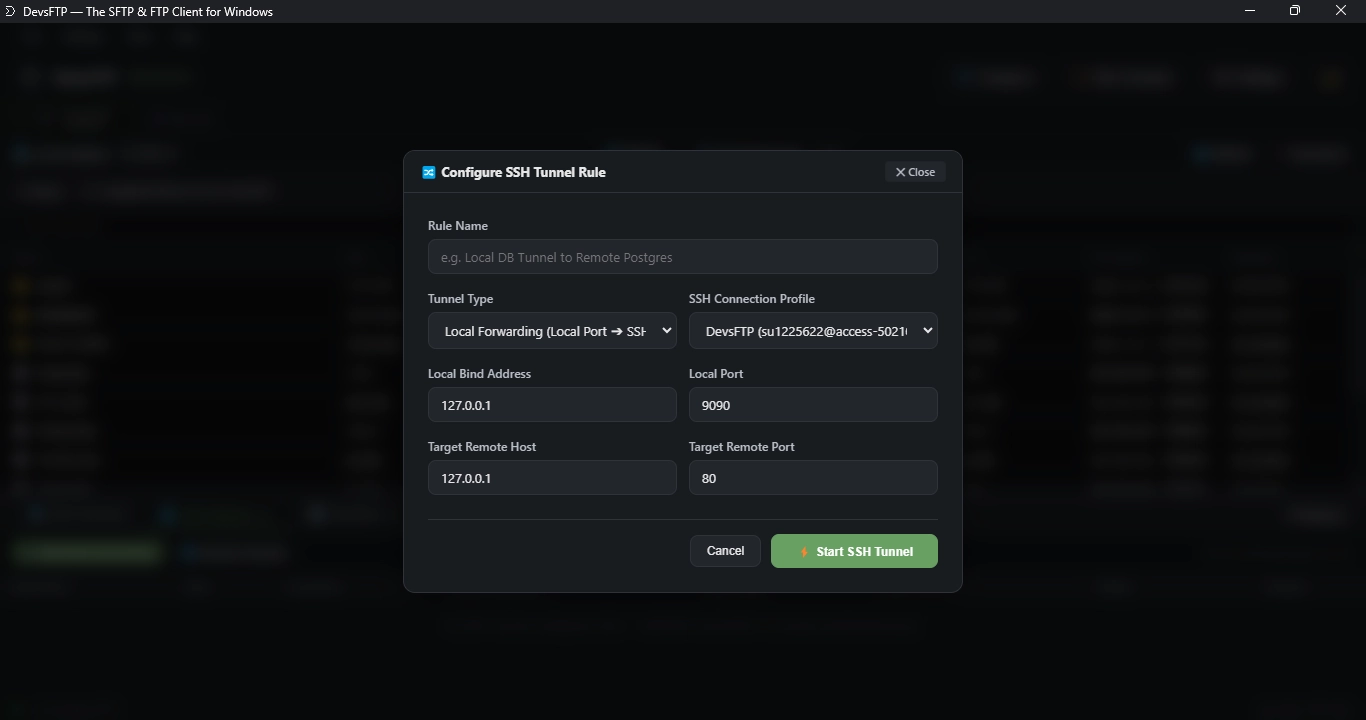
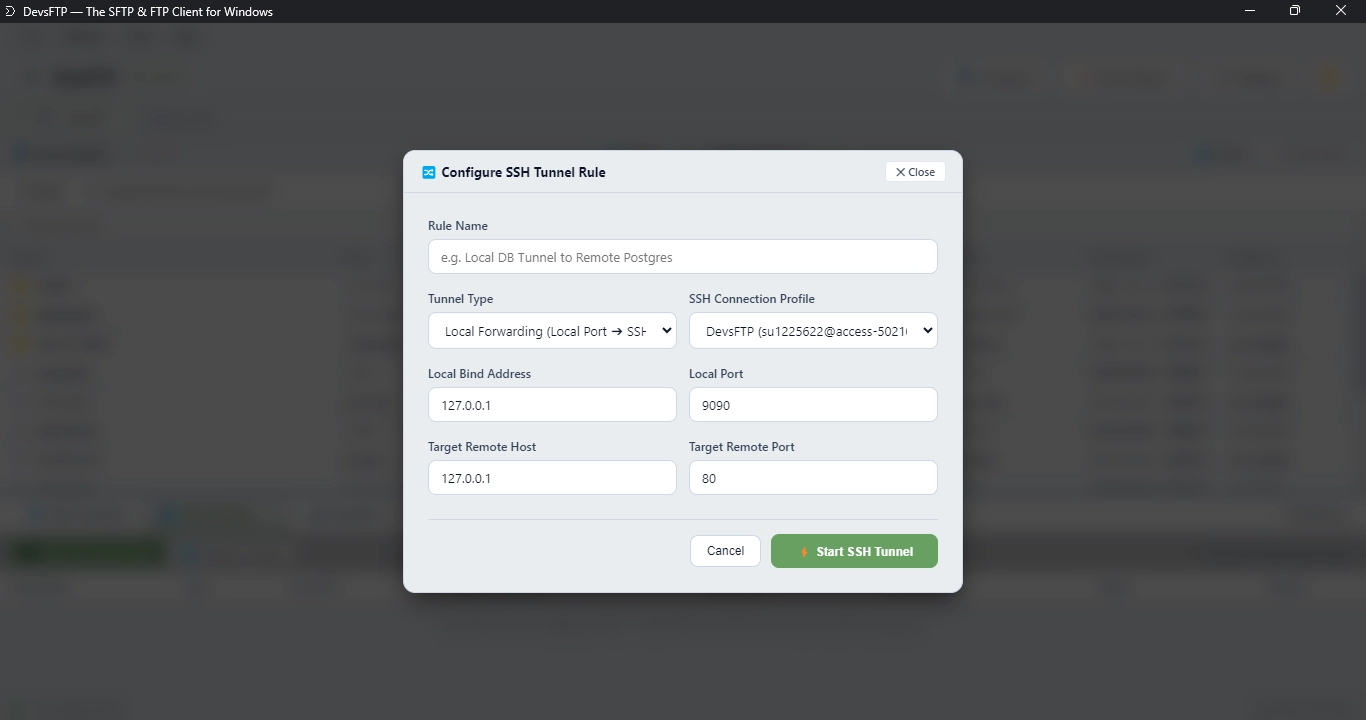
SSH Tunneling & Port Forwarding
Establish encrypted TCP routing channels between local developer machines and remote infrastructure. DevsFTP supports three forwarding formats:
{
"id": "tun_db_forward",
"name": "Remote Postgres DB Forward",
"type": "local",
"localHost": "127.0.0.1",
"localPort": 5433,
"remoteHost": "10.0.0.5",
"remotePort": 5432
}
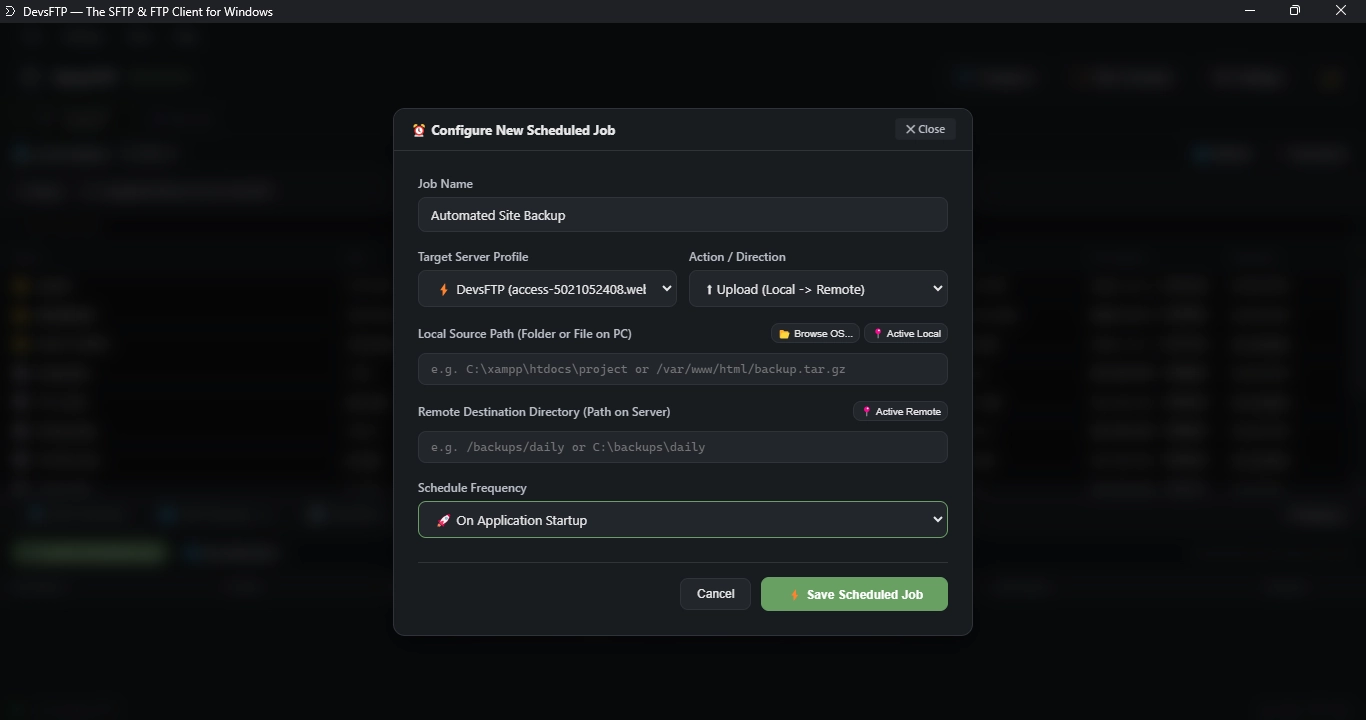
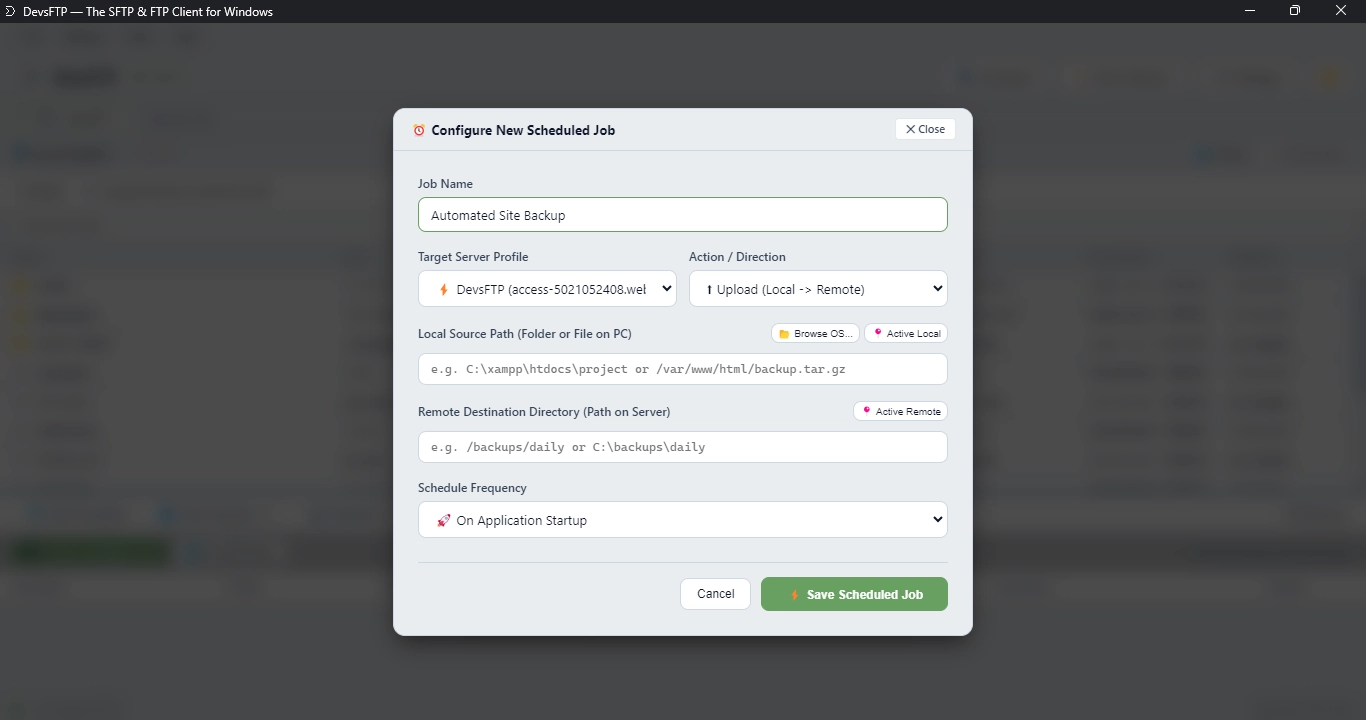
Background Sync Automation Engine
Schedule automated backup and mirroring tasks that run in the background. The scheduler manages execution timers without human intervention.
{
"id": "job_nightly_backup",
"name": "Nightly Assets S3 Mirror",
"scheduleType": "daily",
"dailyTime": "02:00",
"syncDirection": "local-to-remote",
"conflictStrategy": "overwrite-older"
}
Application Keyboard Shortcuts
Accelerate file management with standard keystroke commands:
| Category |
Keystroke |
Action Description |
| System Tools |
Ctrl + Shift + Del |
Purges external editor cache files immediately. |
| System Tools |
Ctrl + Shift + E |
Exports connection profiles as an encrypted JSON backup file. |
| System Tools |
Ctrl + Shift + I |
Imports connection profiles from an exported JSON config. |
| File Navigation |
Ctrl + A |
Selects all items in the active pane. |
| File Navigation |
↑ / ↓ Keys |
Navigates file listing up or down. |
| File Navigation |
Shift + ↑ / ↓ |
Expands multiple file selection range. |
| File Navigation |
Enter |
Opens directory or launches file in default editor. |
| Modals |
Esc |
Dismisses active modal or prompt window. |
Protocol Diagnostics Log Console
Inspect low-level socket handshakes, authentication negotiations, and raw transaction records in real time. The bottom protocol log drawer prints color-coded diagnostic entries for SFTP, FTPS, WebDAV, and S3 REST queries.
[01:14:02] [INFO] Connecting via SFTP to deploy@198.51.100.24:22...
[01:14:02] [INFO] SSH Connection established. Requesting SFTP subsystem...
[01:14:03] [SUCCESS] SFTP Session active and ready.
[01:14:03] [INFO] Detected remote server OS: LINUX (realpath: /var/www)
[01:14:04] [EXEC] cd /var/www && tar -czf backup.tar.gz uploads (exit code: 0)
[01:14:05] [SUCCESS] ✓ Successfully compressed uploads to backup.tar.gz
Global Bookmarks & Folder Shortcuts
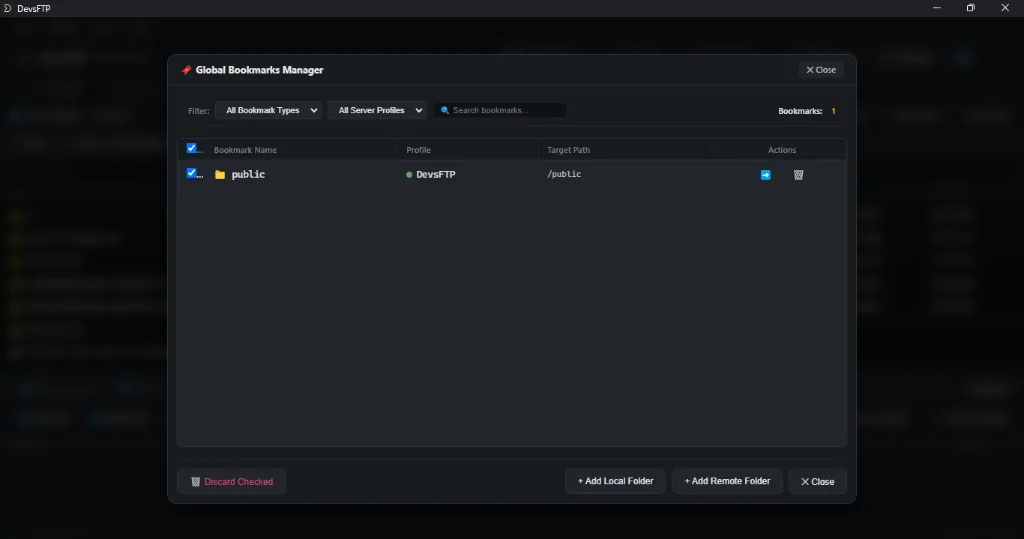
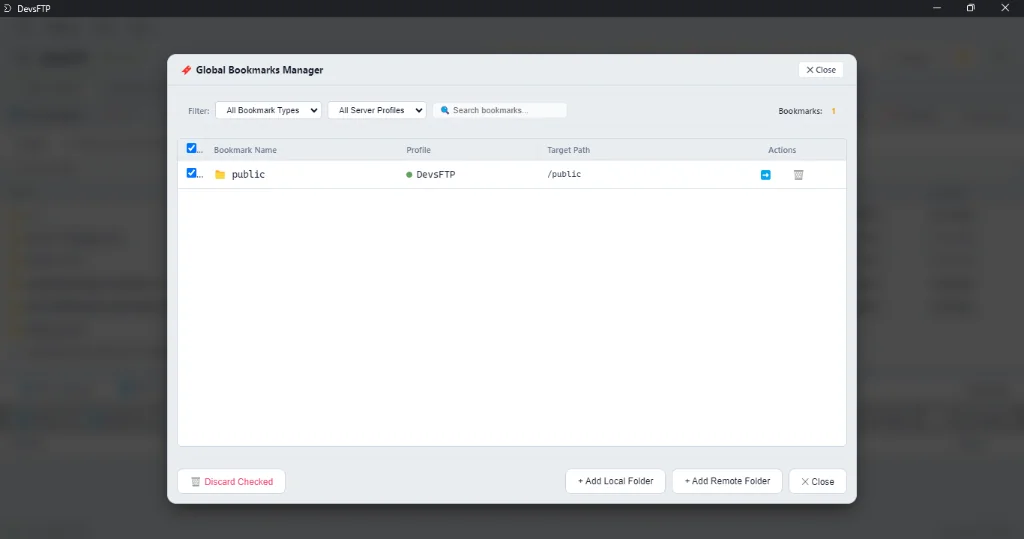
Organize frequently accessed directory paths across both local and remote file systems. The Bookmarks engine supports profile-isolated shortcuts as well as global directory favorites with instant keyboard jump shortcuts.
{
  "id": "bm_remote_public",
  "name": "public",
  "type": "remote",
  "profileId": "prof_devsftp",
  "profileName": "DevsFTP",
  "targetPath": "/public",
  "createdAt": "2026-09-22T15:58:00Z"
}