DevsFTP User Guides & Help Center
Official user manual, step-by-step connection tutorials, and practical solutions for configuring and mastering DevsFTP.
1. Quick Start & Workspace Architecture
DevsFTP is an offline-first desktop client built for professional developers, sysadmins, and DevOps engineers. It operates with zero remote telemetry and stores all credentials exclusively on your physical workstation.
Installed Mode vs. Portable USB Mode
Depending on how you deploy DevsFTP, the runtime chooses one of two distinct storage profiles:
-
A
Installed Desktop Mode (Default): When installed via DevsFTP Setup 2.0.0.exe or DEB/AppImage, your profiles and caches are stored in your operating system user application directory (%APPDATA%\DevsFTP\ on Windows, or ~/.config/DevsFTP/ on Linux).
-
B
Portable Mode (Zero-Footprint USB Operation): Run the standalone DevsFTP 2.0.0.exe from any flash drive. If a folder named .devs_userData exists alongside the executable, DevsFTP redirects all configuration, encryption keys, and caches into that folder. No registry keys or local files are left on the host system.
Application Settings & Preferences
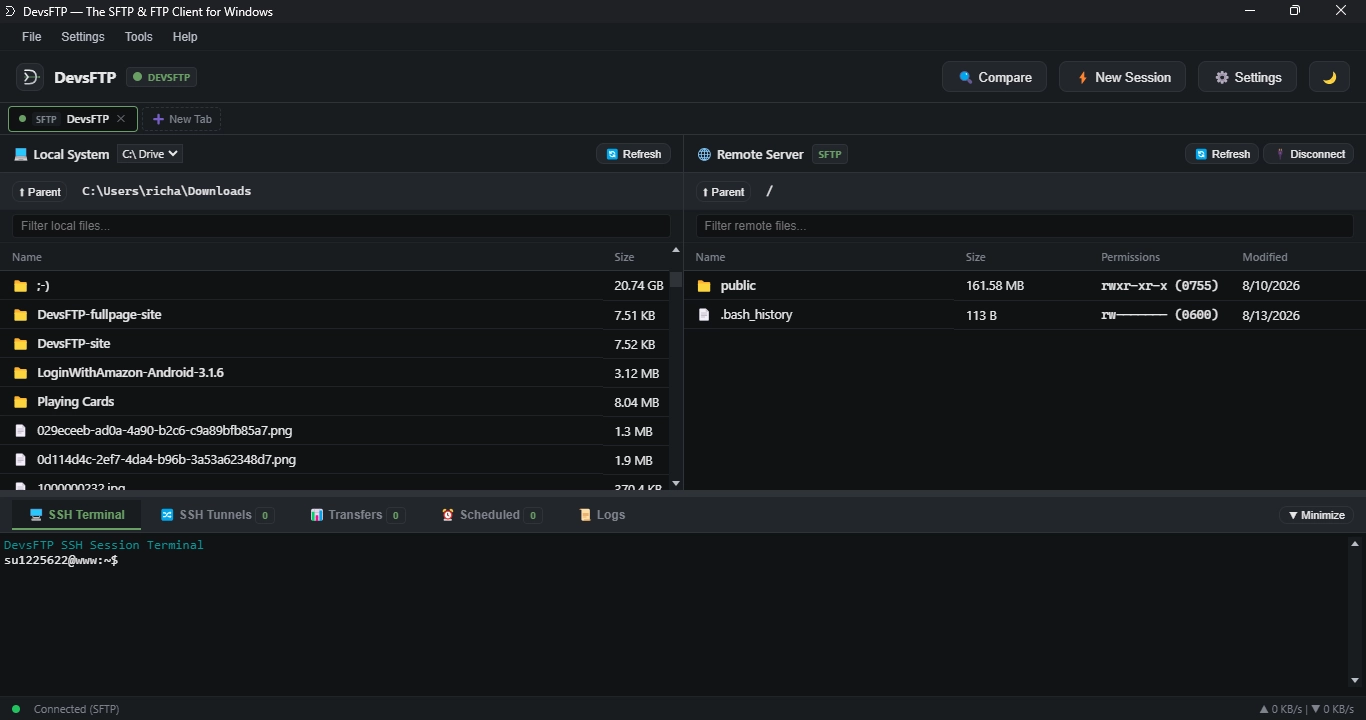
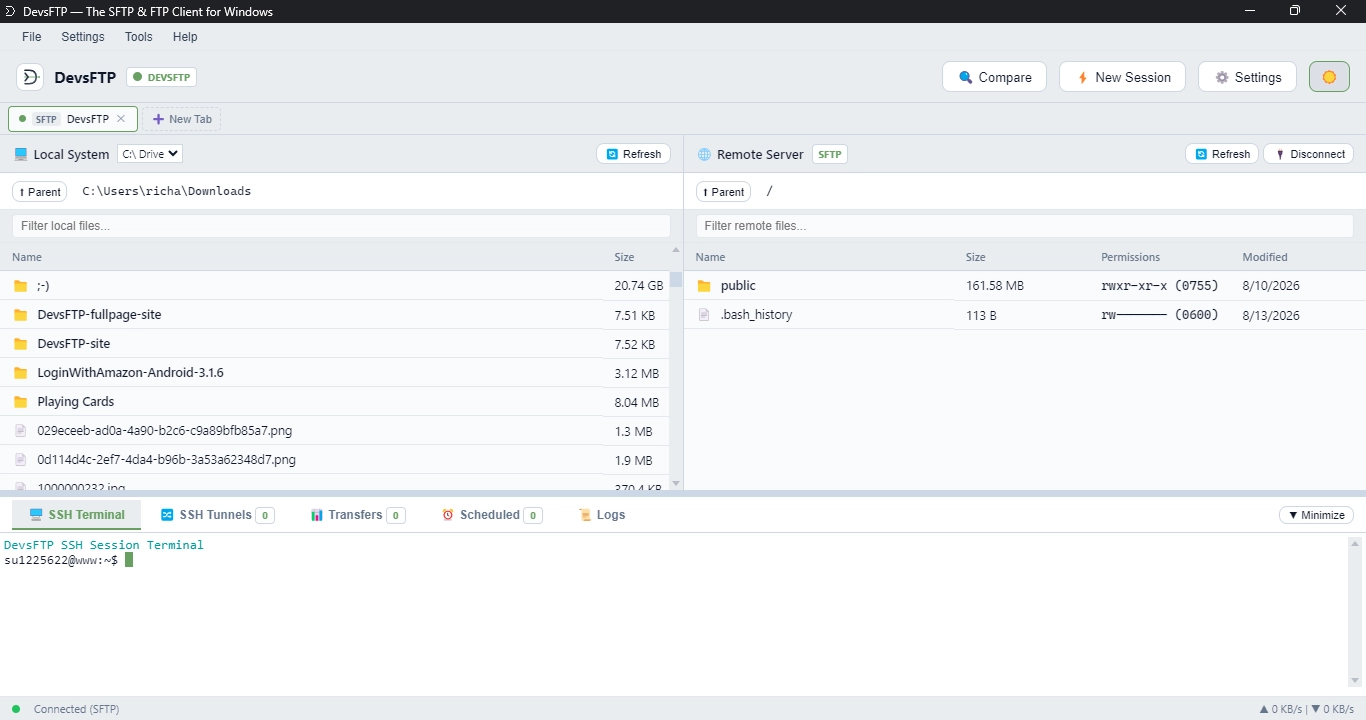
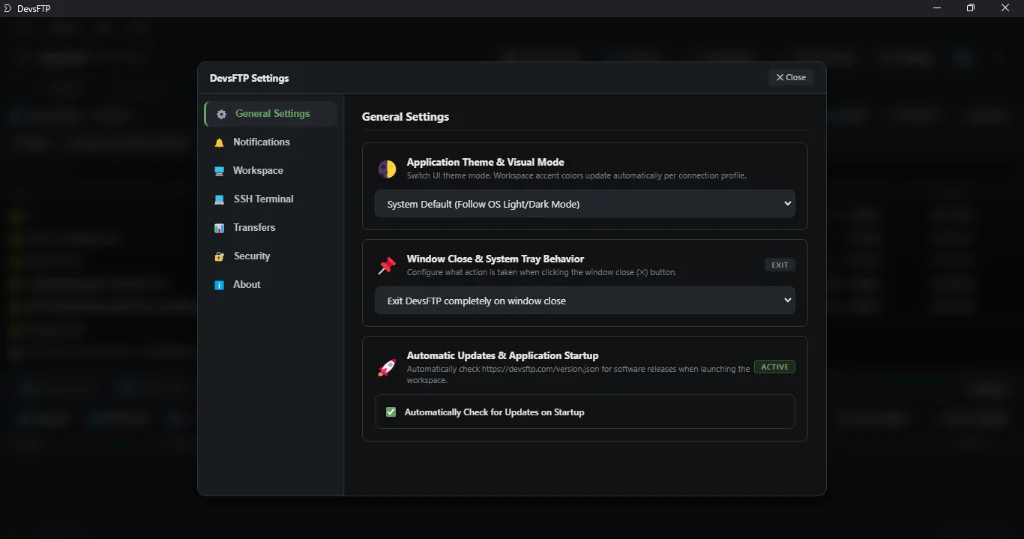
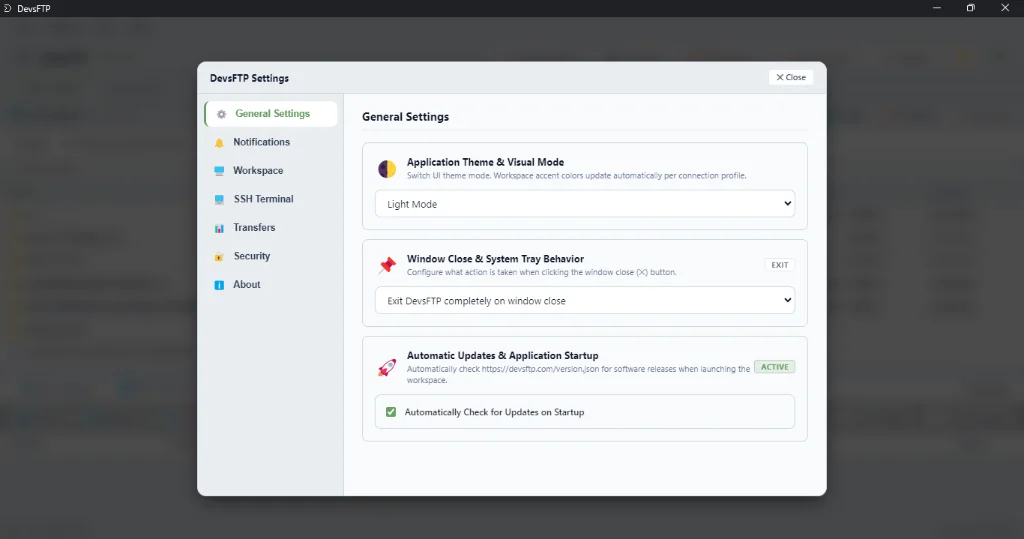
Customize visual themes (Light, Dark, or System Default), window closing behaviors (exit vs. minimize to system tray), and automated software update checks in Settings > General Settings.
Basics
2. Connecting to Your First Server
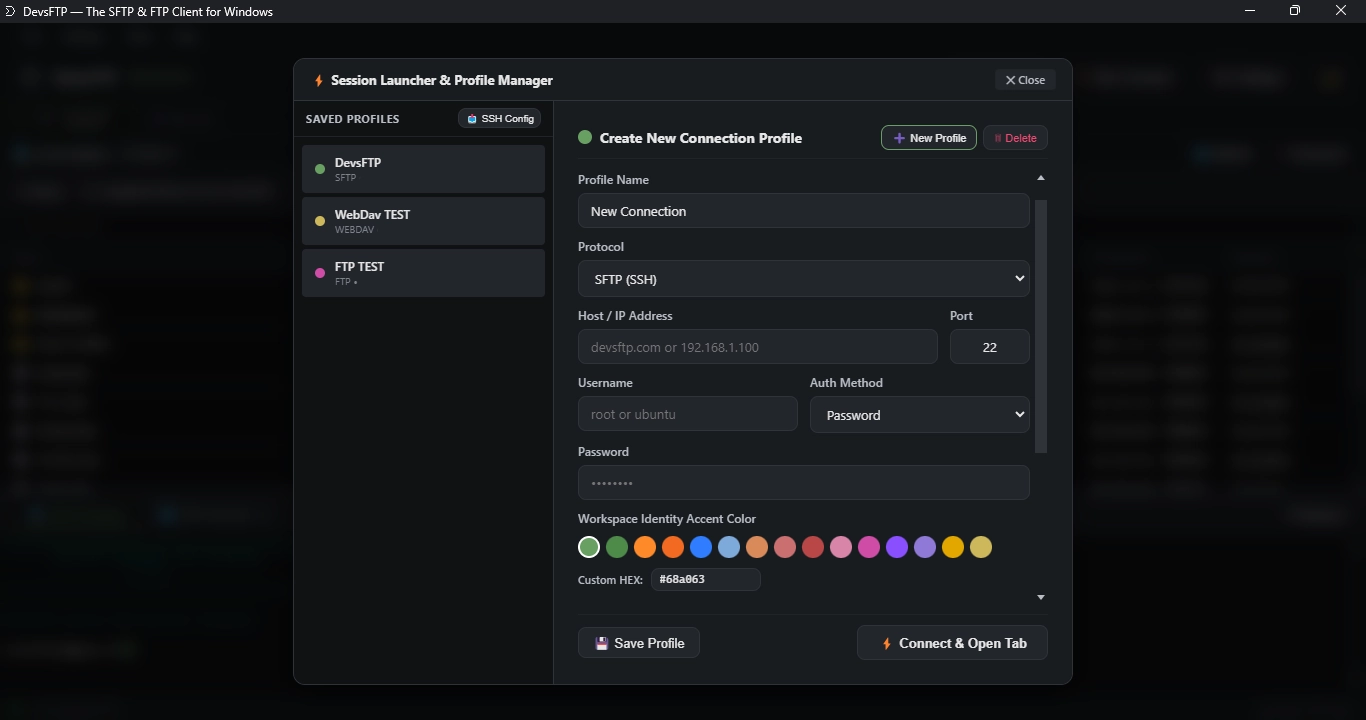
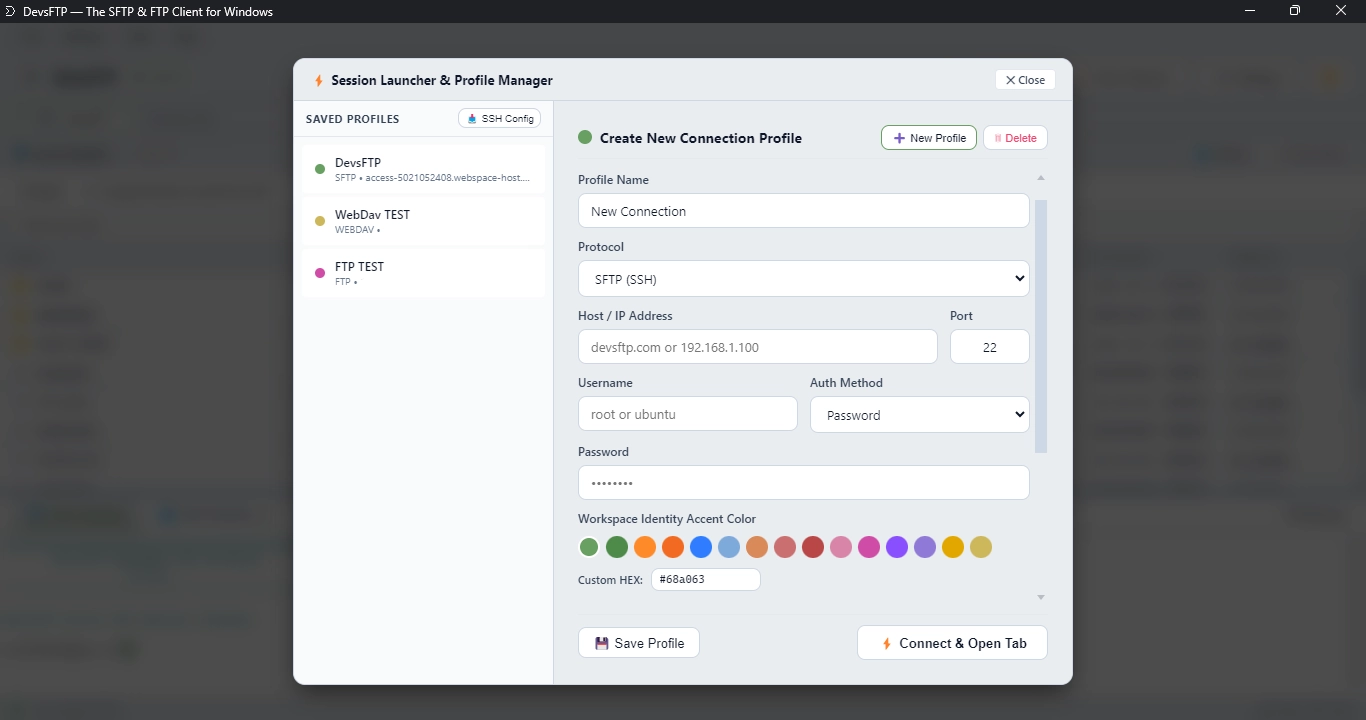
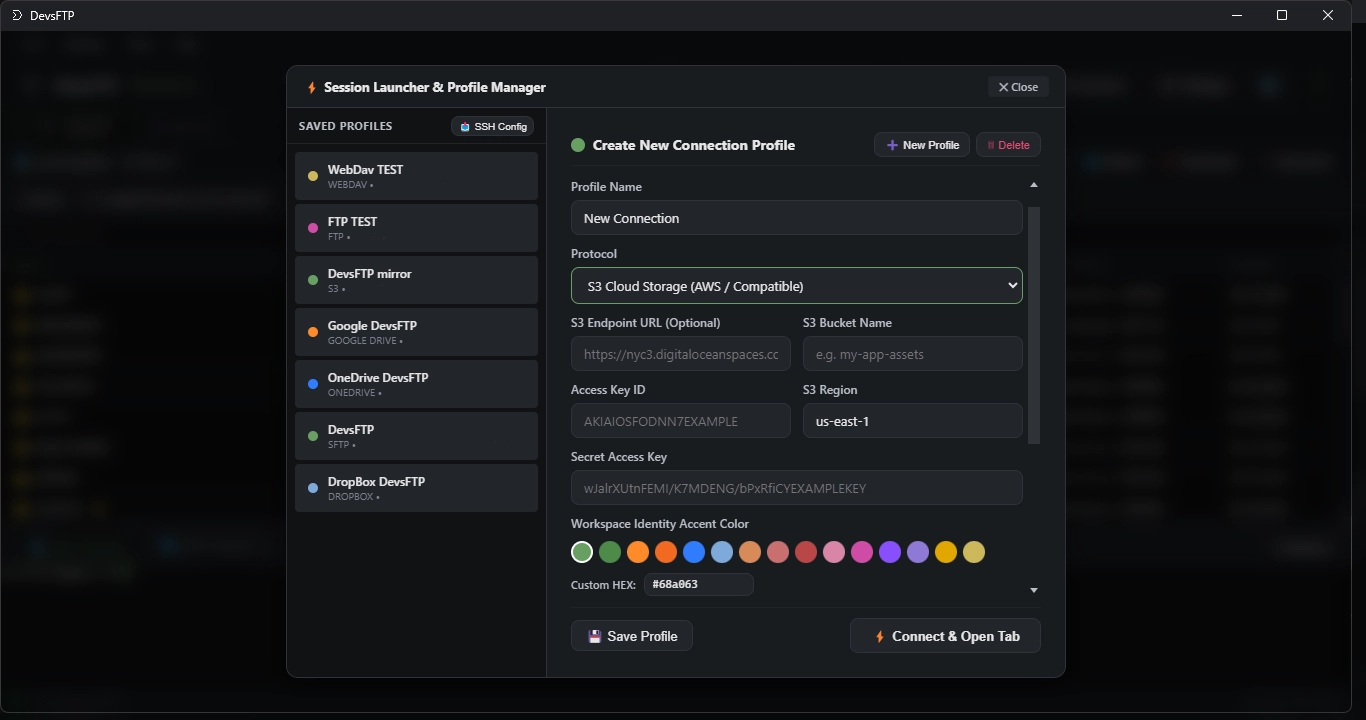
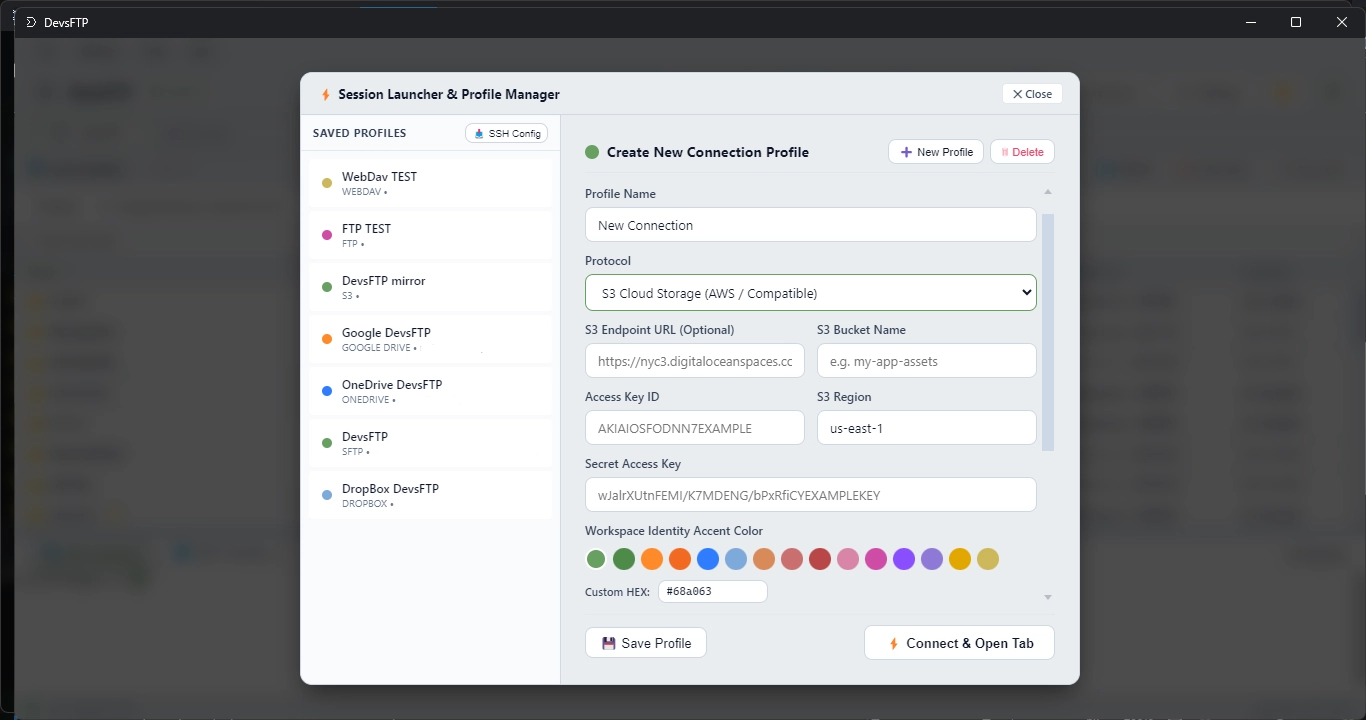
You can establish connections either through the Quick Connect Bar at the top of the window, or via the Profile Manager (Ctrl+N / Cmd+N).
Step-by-Step Connection Guide
-
1
Open Connection Manager: Click File > New Connection... from the top menu or click the ⚡ New Session button on the header toolbar.
-
2
Select Protocol: Choose your target protocol from the dropdown: SFTP (SSH), Amazon S3, FTP / FTPS, or WebDAV.
-
3
Enter Server Details: Fill in the server hostname (e.g. sftp.example.com or IP 198.51.100.24), port (default 22 for SFTP, 21 for FTP), and your login username.
-
4
Select Authentication Method: Choose Password or Private Key. When using a key, click Browse to select your id_ed25519, id_rsa, or .pem file.
-
5
Connect: Click Connect to open the session. The remote directory structure will populate in the right-hand browser pane.
💡 Pro Tip: Multi-Session Tabs
You can open multiple servers simultaneously! Each connected server appears in its own independent tab at the top of the file browser, allowing you to switch between servers instantly.
Workspace
3. Profiles & Workspace Accent Colors
To eliminate the risk of accidental production changes, DevsFTP lets you assign distinct Workspace Accent Colors to individual connection profiles.
When connecting to a profile with an assigned accent color (such as #EF4444 Red for Production, #F59E0B Amber for Staging, or #10B981 Emerald for Development), the entire session tab, status indicator, and breadcrumb header dynamically tint to that color.
Configuring Default Initial Paths
Inside each profile, you can bind default folder paths so your workspace opens to the right location immediately upon connection:
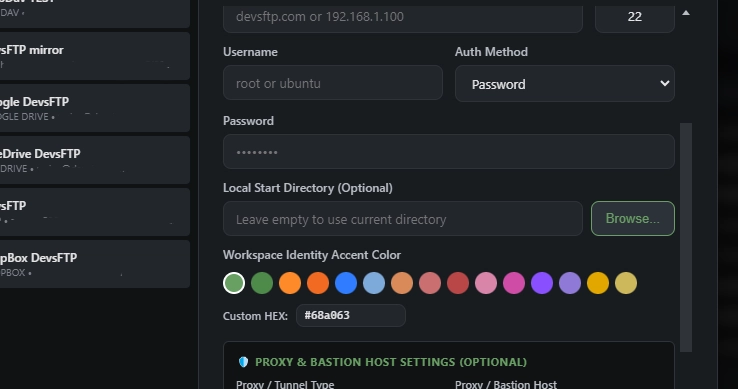
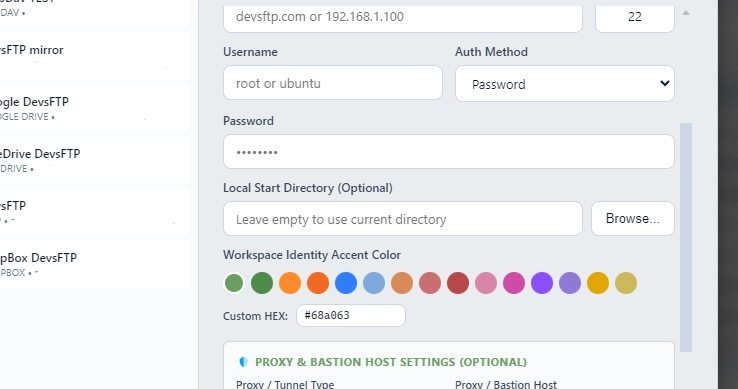
- Local Start Directory: DevsFTP automatically navigates the local left pane straight to your project folder (e.g.
C:\Projects\MyWebsite).
- Remote Start Directory: DevsFTP automatically opens the remote right pane to your deployment root (e.g.
/var/www/html/current).
Click the Browse... button beside the "Local Start Directory (Optional)" field to choose your folder using the native system folder picker. When you connect, the local pane switches to that project directory automatically.
Security • SSH
4. SFTP & SSH Key Authentication
DevsFTP supports modern OpenSSH key types including Ed25519, ECDSA, and RSA (2048/4096-bit). Standard OpenSSH private key formats and encrypted passphrases are supported natively.
Importing OpenSSH Config (~/.ssh/config)
If you already manage servers in your terminal with an OpenSSH config file, DevsFTP can import them in one click:
-
1
Open the Connection Manager (Ctrl+N).
-
2
Click the Import SSH Config button at the bottom of the profiles list.
-
3
DevsFTP parses your ~/.ssh/config, extracting Host aliases, HostName IP addresses, Ports, Users, IdentityFile paths, and ProxyJump relays, converting them into saved profiles automatically.
Cloud Object Storage
5. Connecting to Amazon S3, Cloudflare R2 & MinIO
DevsFTP connects directly to AWS S3 and any S3-compatible object storage provider with authentic AWS Signature Version 4 (SigV4) request signing.
Provider Configuration Settings
- Official AWS S3: Enter your regional endpoint URL (e.g.
https://s3.amazonaws.com or https://s3.us-east-1.amazonaws.com). Select your bucket's region (e.g. us-east-1, eu-west-1), provide your Access Key ID and Secret Access Key, and specify your Bucket name.
- Cloudflare R2: Enter your endpoint URL as
https://<ACCOUNT_ID>.r2.cloudflarestorage.com and set the region to auto.
- MinIO (Self-Hosted): Enter your local or LAN endpoint (e.g.
http://192.168.1.100:9000), check Force Path Style if required by your MinIO setup, and provide your credentials.
- Wasabi / Backblaze B2 / DigitalOcean Spaces: Enter the provider's specific regional endpoint (e.g.
https://s3.us-west-1.wasabisys.com or https://nyc3.digitaloceanspaces.com).
Protocols
6. Connecting via FTPS & WebDAV
In addition to SFTP and S3, DevsFTP provides full support for legacy and enterprise web protocols:
FTP / FTPS (FTP over TLS)
Supports Explicit TLS (AUTH TLS) on standard port 21 and Implicit TLS on port 990. DevsFTP negotiates modern TLS 1.3/1.2 encryption ciphers and supports Passive mode (PASV) traversal for complex enterprise NAT environments.
WebDAV (Nextcloud / ownCloud / Apache / IIS)
Connect directly to any WebDAV-compatible remote folder. Supports HTTPS endpoints, Basic and Digest authentication, and native WebDAV chunked file streams.
Enterprise Networking
7. Connecting Through Bastion & Jump Hosts
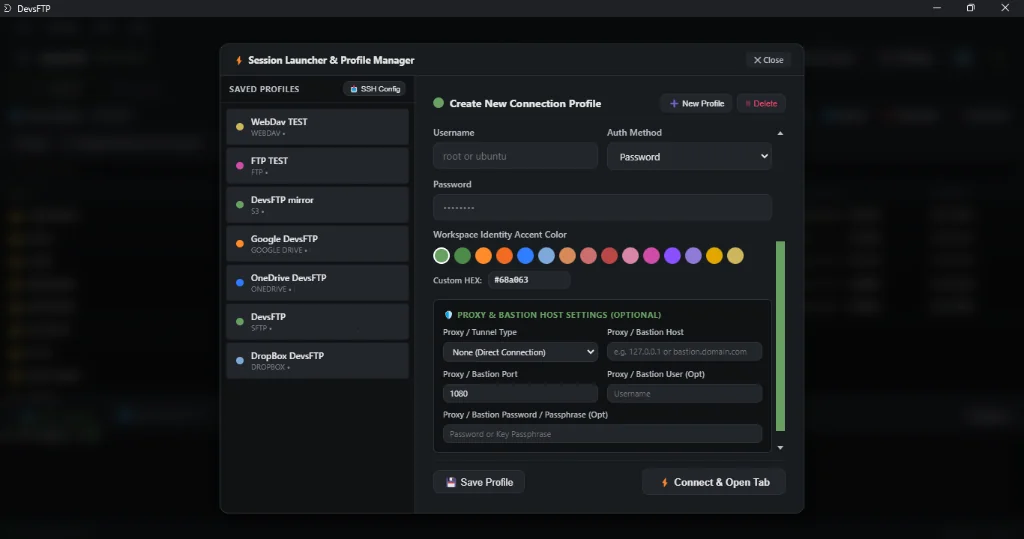
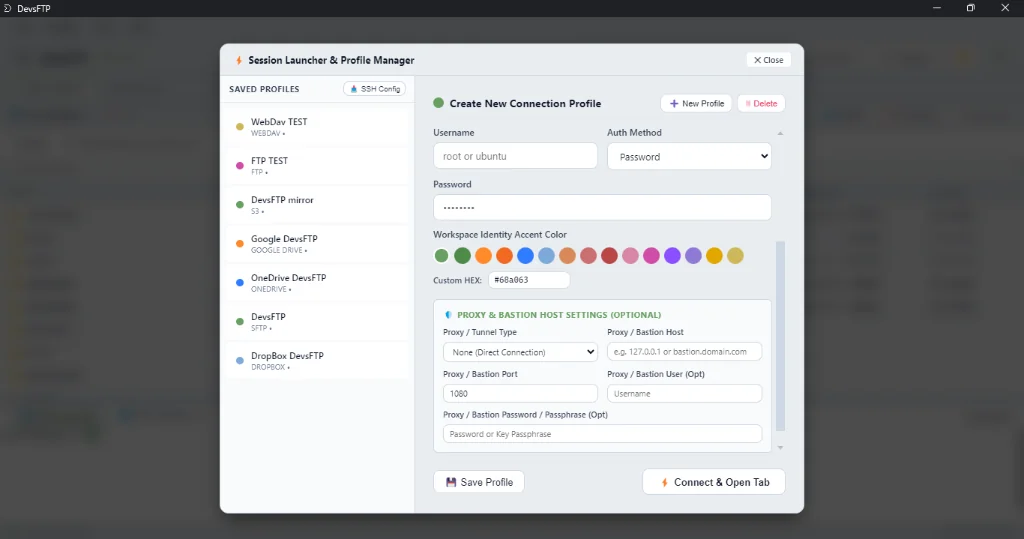
When private database servers or internal development nodes do not have public IP addresses, DevsFTP can securely tunnel connections through a public Bastion / Jump Host.
Setting Up a Bastion Connection
-
1
In the Profile Manager, select or create your target profile (e.g. the private server at 10.0.1.50).
-
2
Scroll down to the Proxy / Bastion Host section and toggle Enable Jump Host.
-
3
Enter the Bastion server's public IP address, SSH port (usually 22), username, and authentication key.
-
4
Click Connect. DevsFTP establishes an encrypted SSH channel to the Bastion host first, then multiplexes an internal SFTP session directly into the private server over SSH stream forwarding.
Productivity
8. Editing Remote Files with Local Editors (VS Code, Sublime, etc.)
You don't need clunky built-in text editors. DevsFTP lets you edit remote files directly inside your favorite desktop IDE (VS Code, Sublime Text, Notepad++, IntelliJ, PHPStorm, or standard Notepad).
How the Live Auto-Sync Watcher Works
-
1
Open in Editor: Right-click any file in the remote browser pane and select Edit in External Editor (or press Enter / double-click).
-
2
Isolated Staging: DevsFTP downloads a temporary working copy into a secured local staging cache and launches your default editor.
-
3
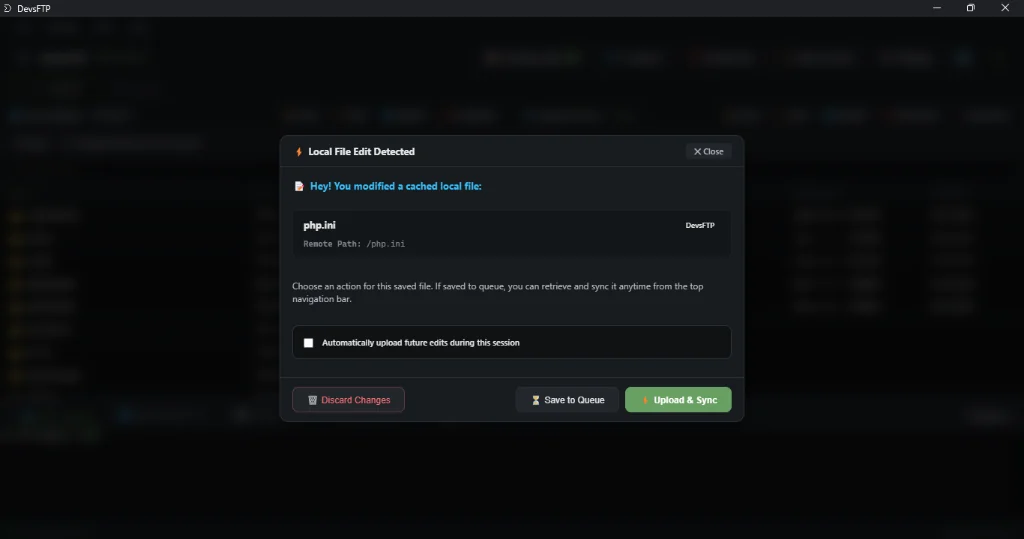
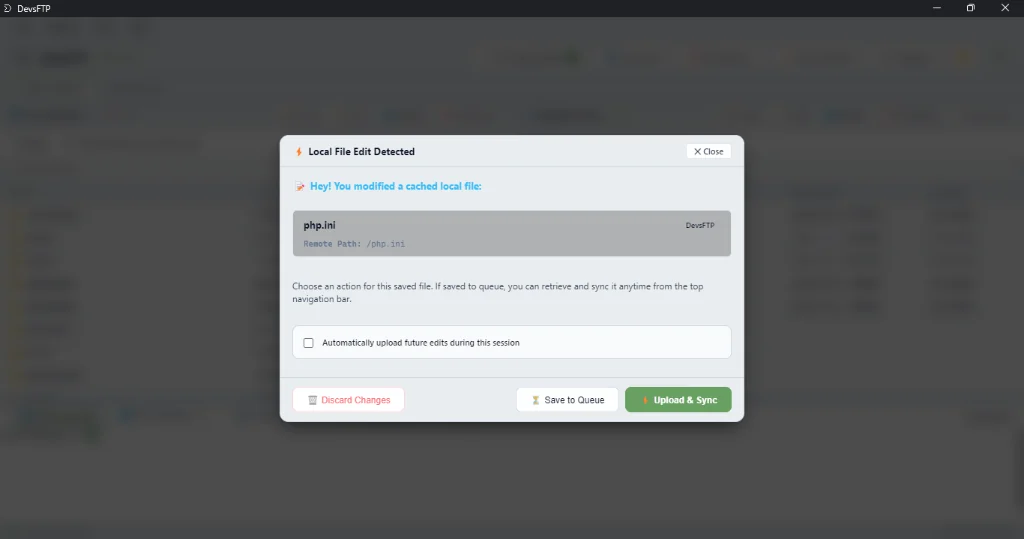
Live Save Detection: DevsFTP attaches a high-frequency filesystem watcher (chokidar) with debouncing. The moment you press Ctrl+S or Cmd+S in your editor, DevsFTP instantly catches the modification.
-
4
Instant Upload: DevsFTP uploads the changed file directly back to the remote server and displays a non-intrusive sync notification.
Productivity
9. Managing Pending Edits & Startup Restore
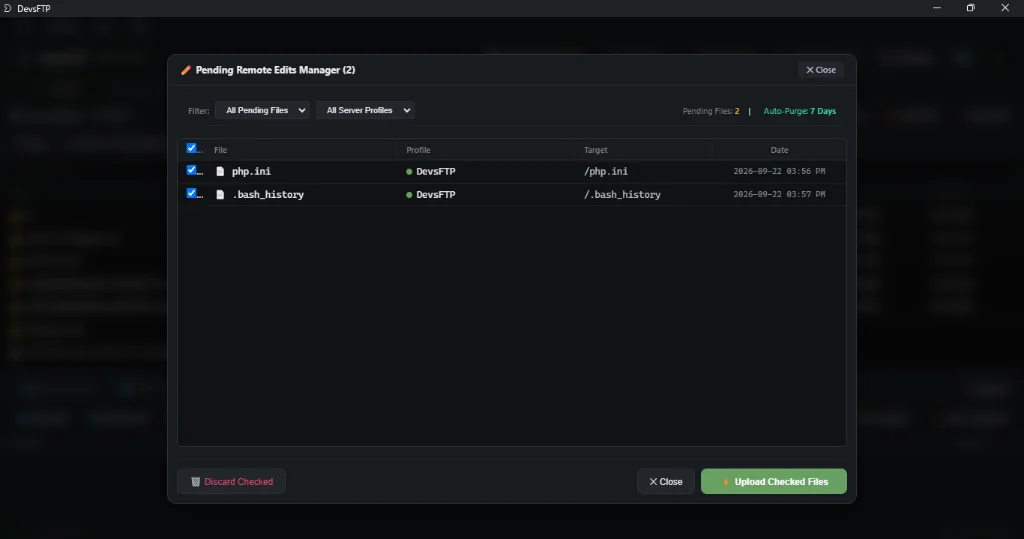
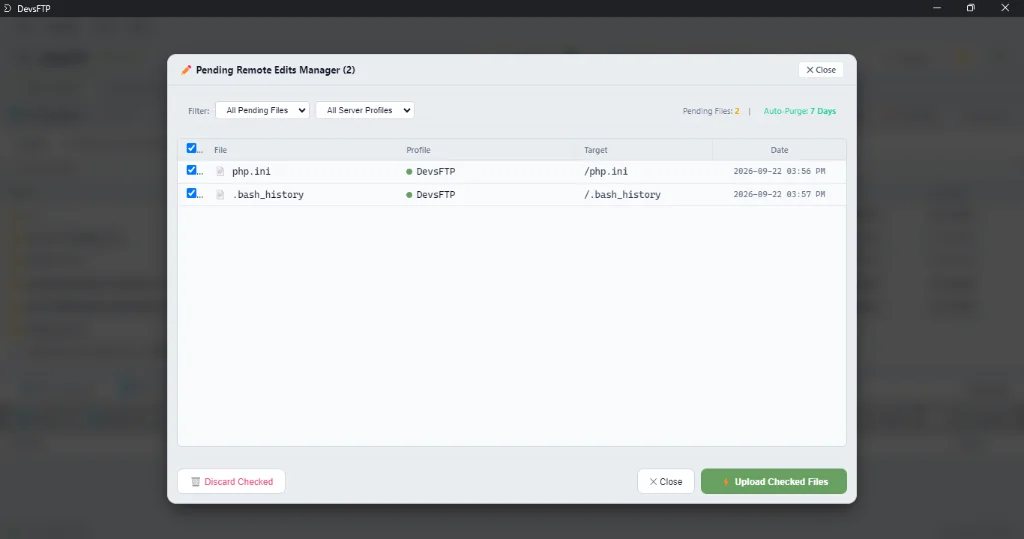
Ever closed your FTP client while an editor was still open, or suffered a sudden power outage? DevsFTP guarantees you will never lose work with its persistent Pending Local Edits Manager.
The Pending Edits Window
Click Tools > Pending Local Edits... or click the 📝 Pending Edits button on the top toolbar to view all active watched files. For every file, you can:
- Force Upload Now: Immediately push the staged file to the server.
- Open in Local Editor: Re-open the local working file in your editor.
- Diff Against Remote: Compare your local changes side-by-side with the current remote copy.
- Discard & Clean: Safely discard local changes and remove the staging file.
Automatic Startup Restore Prompt
When launching DevsFTP, the runtime scans the edit cache. If any unsynced modifications exist from a previous session, a prompt appears with a selective checklist: choose exactly which files to sync to their respective servers or dismiss.
Productivity
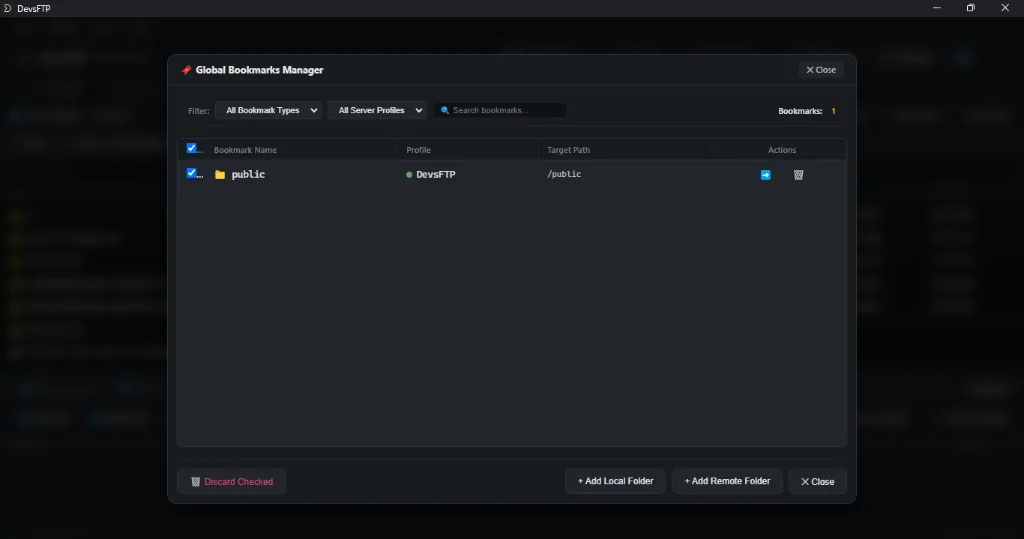
10. Global Bookmarks & Directory Shortcuts
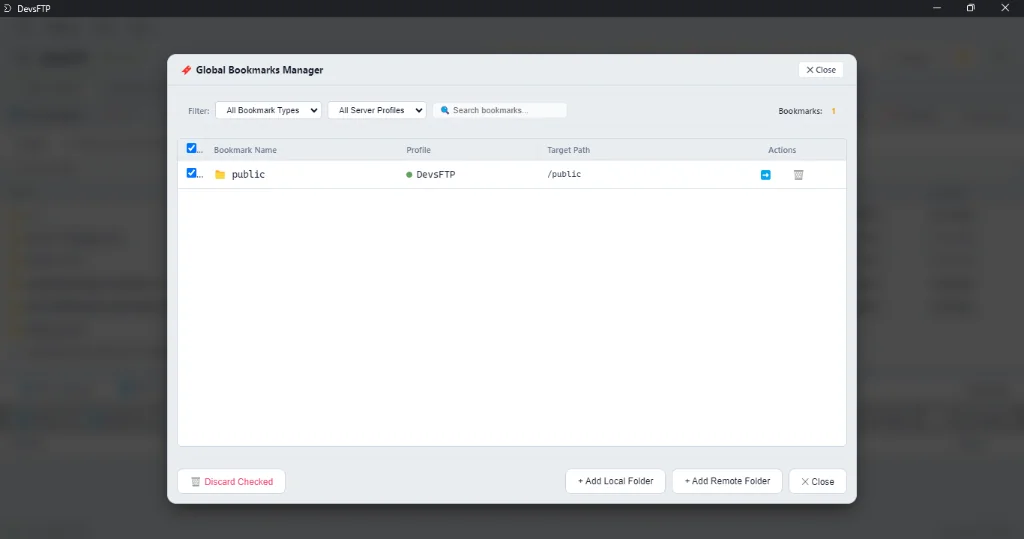
Bookmark frequently visited local working directories and deep remote server paths for instant 1-click navigation. DevsFTP organizes bookmarks into profile-bound and global shortcut categories.
How to Manage Bookmarks
- Quick Bookmark Current Folder: Press Ctrl+D or right-click any local or remote directory and choose Add to Bookmarks.
- Open Bookmarks Manager: Click Tools > Bookmarks Manager... or click the 🔖 Bookmarks toolbar button to search, jump, or prune saved shortcuts.
- 1-Click Directory Jump: Click the arrow button next to any bookmark to navigate the active browser pane directly to that location.
Developer Tools
11. Side-by-Side Directory Compare & Synchronize
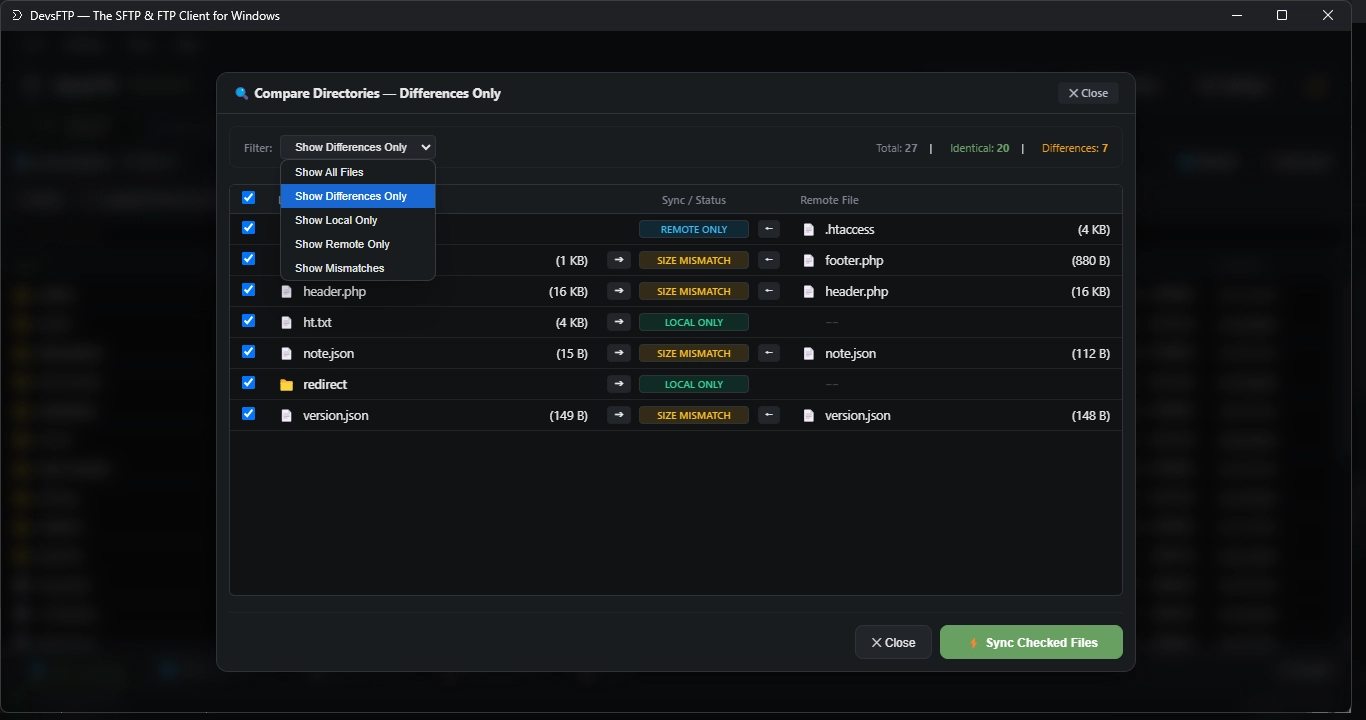
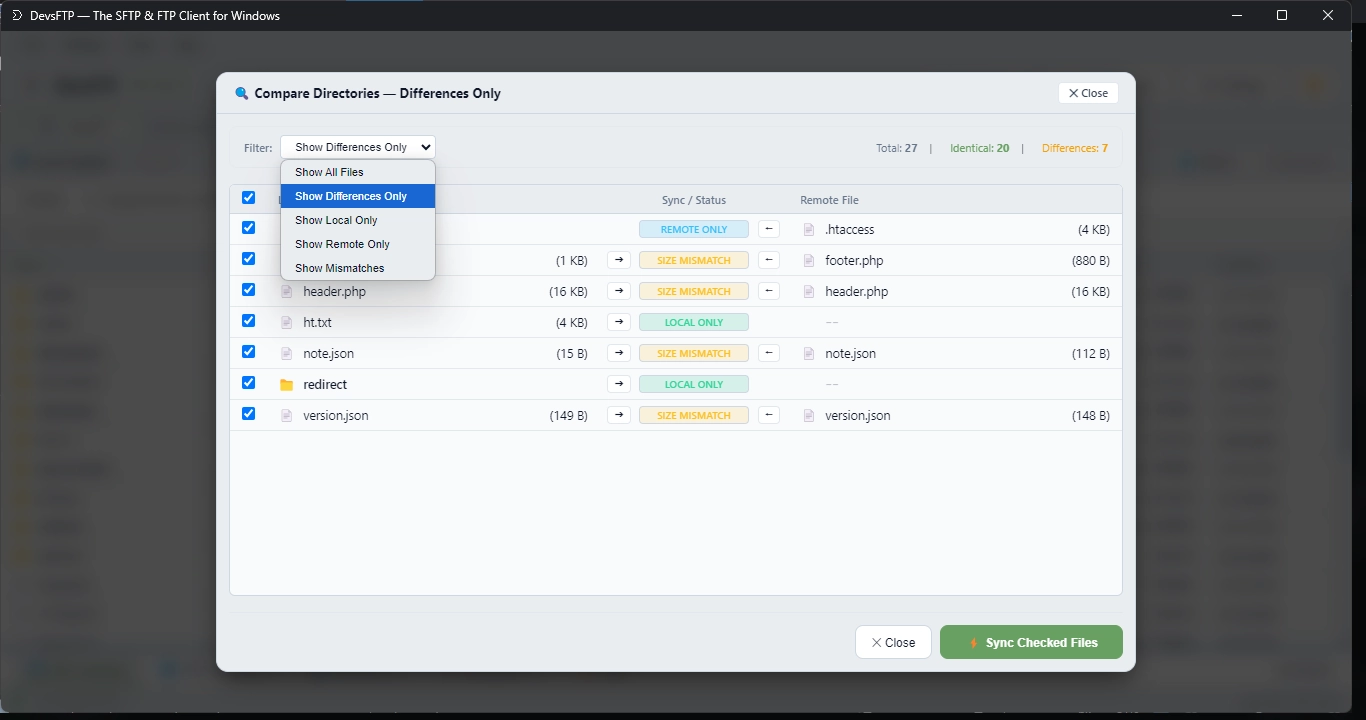
Compare entire local folders against remote directories in seconds to spot differences before running deployments or backups.
Color-Coded Status Highlights
- 🟢 Unique Local: File exists on your local workstation but is missing from the remote server.
- 🔵 Unique Remote: File exists on the remote server but is missing locally.
- 🟡 Modified / Different Size: Files exist in both locations but differ in size or timestamp.
- ⚪ Identical: File sizes and timestamps match perfectly.
Batch Synchronization Options
From the comparison toolbar, click Sync Options to run one of four batch routines:
-
1
Update Remote: Upload all missing and newer local files to the server.
-
2
Update Local: Download all missing and newer remote files to your workstation.
-
3
Mirror to Remote: Make the remote directory an exact replica of local (uploads missing/modified, deletes orphaned remote files).
-
4
Two-Way Merge: Synchronize the newest version of every file in both directions.
Developer Tools
12. Line-by-Line File Discrepancy Viewer
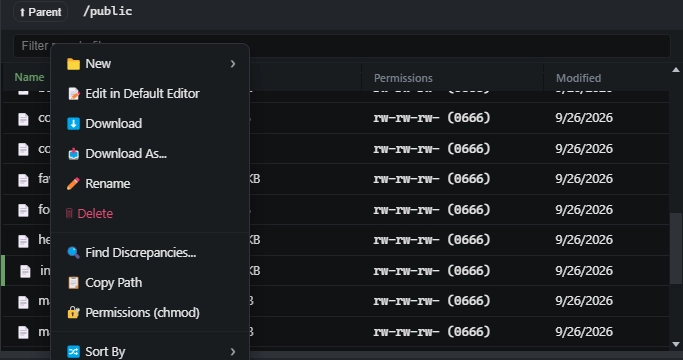
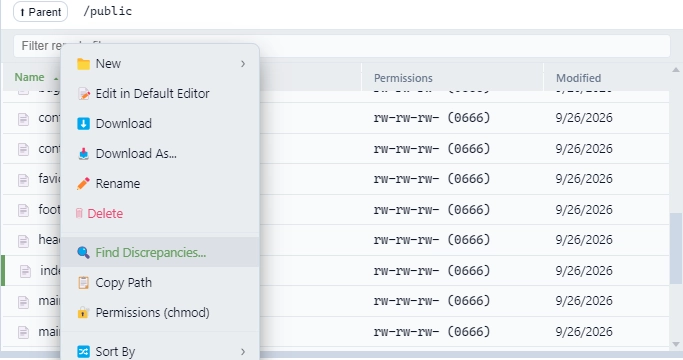
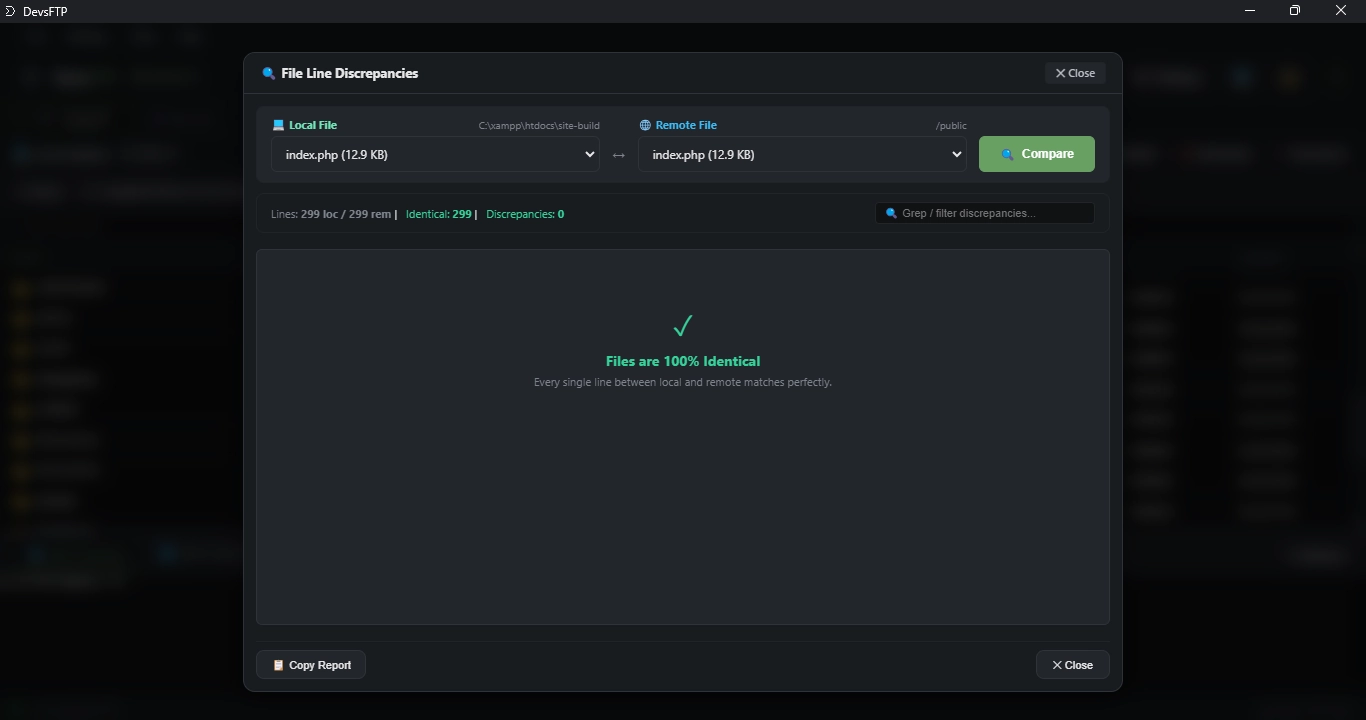
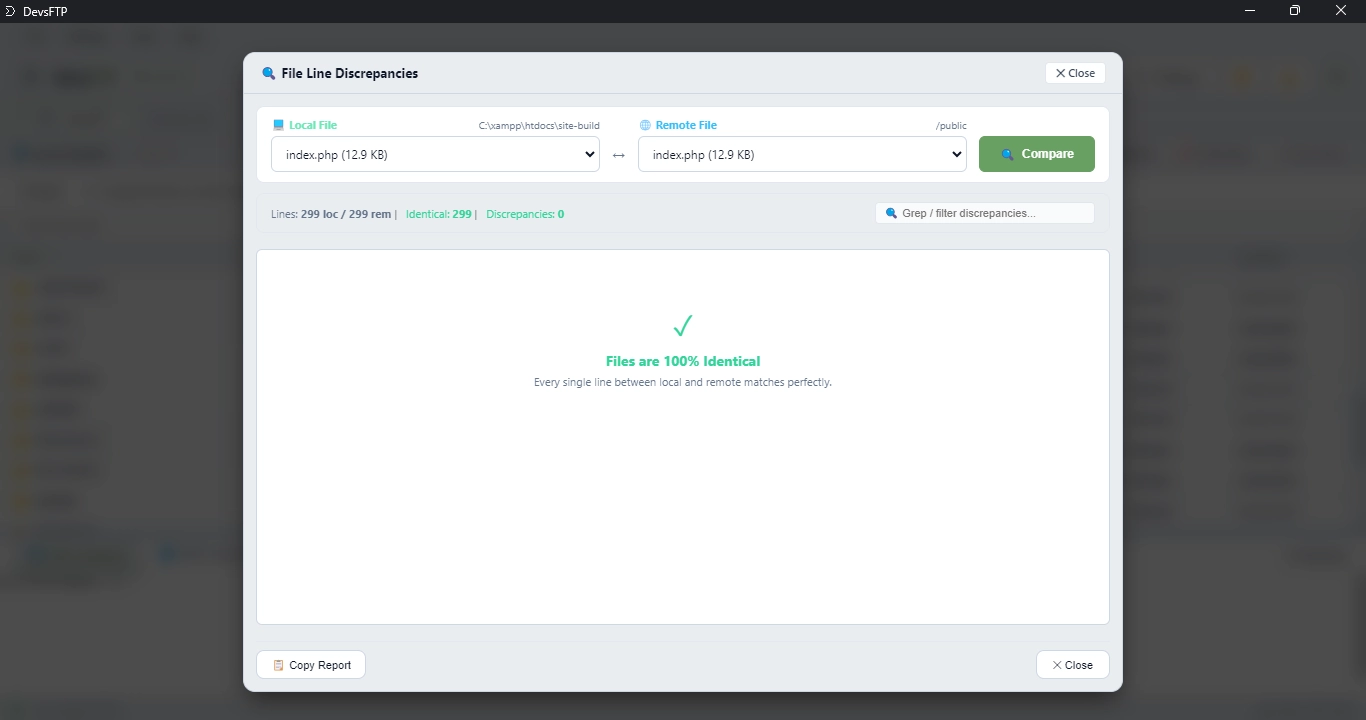
When a directory comparison identifies modified files, you can inspect the exact code differences line-by-line without opening an external diff tool. The built-in discrepancy viewer displays paired hunks with exact line numbers and visual diff indicators.
How to Compare Two Files
-
1
Select a file in the local browser and its counterpart in the remote browser, or click the Inspect Discrepancies icon in the Directory Compare modal.
-
2
The comparison modal opens with side-by-side local and remote paths, displaying line-by-line differences, additions (green), and deletions/modifications (amber/red).
-
3
Filter with Live Grep: Type into the search input at the top to filter diff lines in real time across large files.
-
4
Export Report: Click Copy Report to copy a structured Markdown diff report directly to your clipboard for documentation or commit notes.
Advanced Transfers
13. Direct Server-to-Server Remote Transfers
Migrating large archives, database dumps, or image libraries between two remote servers usually wastes local bandwidth. DevsFTP's Remote-to-Remote Pipeline transfers data directly between servers without saving it to your local hard drive.
How to Run a Server-to-Server Migration
-
1
Connect to both servers in separate session tabs (e.g. Tab 1 is your old SFTP server, Tab 2 is your new AWS S3 bucket).
-
2
Select the files or directories you want to migrate on the source server.
-
3
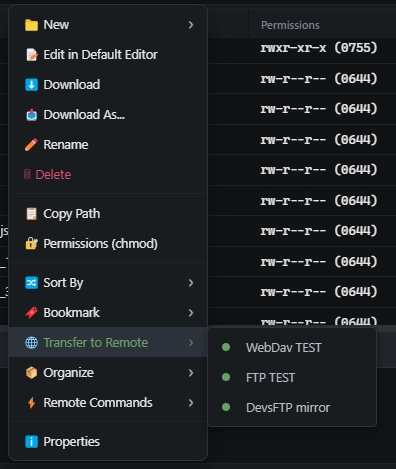
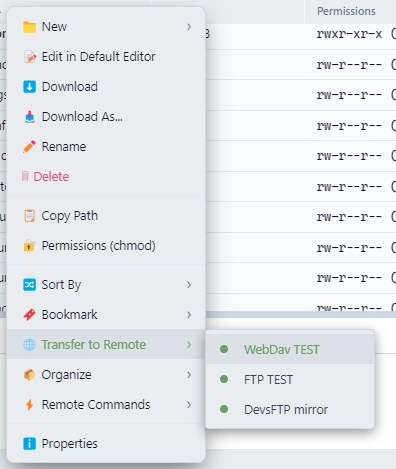
Right-click and select Transfer to Remote Session > [Target Server Name].
-
4
DevsFTP opens an in-memory streaming bridge: data flows directly from the source socket into the destination socket, saturating full server upload and download speeds.
Server Management
14. Executing Server-Side Commands (tar, grep, find, du)
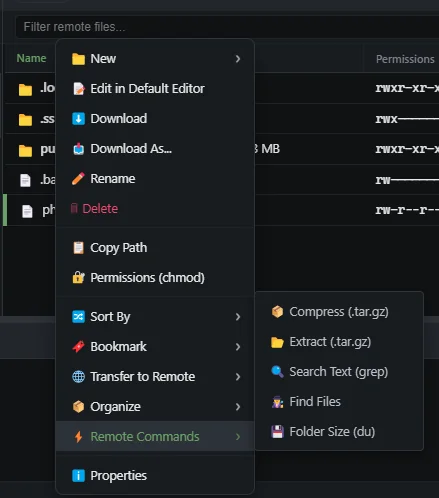
Stop downloading gigabytes of logs or folders just to search or compress them. DevsFTP lets you execute fast, server-side utilities directly from the file browser context menu.
Available Remote Commands
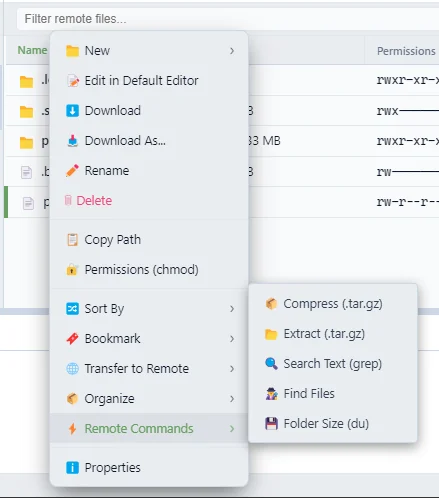
- Compress with Tar / Gzip: Select folders or files, right-click, and choose Remote Commands > Compress (tar.gz). The archive is created on the server in milliseconds.
- Extract Archive: Right-click any
.tar.gz, .tgz, or .zip archive and choose Extract on Server.
- Grep Search: Search for strings, regex patterns, or error messages inside remote files without downloading them. Results display in a clean diagnostic drawer.
- Calculate Disk Usage (
du -sh): Instantly calculate recursive directory sizes on the server.
Permissions
15. Managing Permissions with the Visual CHMOD Matrix
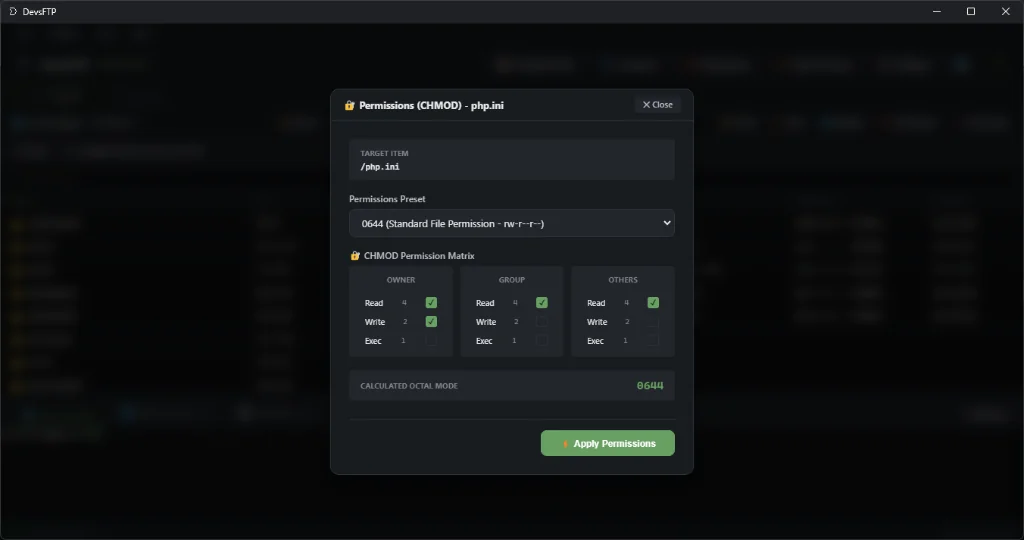
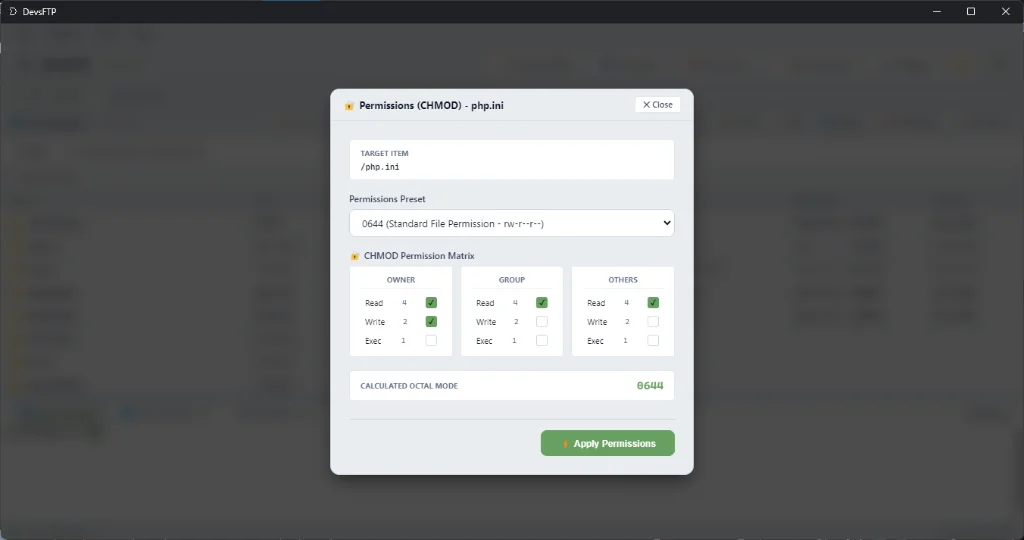
Modifying Linux and Unix file permissions is effortless with DevsFTP's visual permission matrix and live octal calculator.
How to Change File & Folder Permissions
-
1
Right-click any file or directory in the remote browser pane and select Change Permissions (CHMOD)....
-
2
Toggle the checkboxes for Read (r), Write (w), and Execute (x) across Owner, Group, and Public.
-
3
The octal notation box updates live (e.g. 0755 for directories, 0644 for web files). You can also type an octal number directly.
-
4
Recursive Subdirectories: When modifying a folder, check Apply recursively to all subdirectories and files to propagate permissions across the entire tree.
Performance
16. Transfer Queue, Concurrency Pools & Bandwidth Throttling
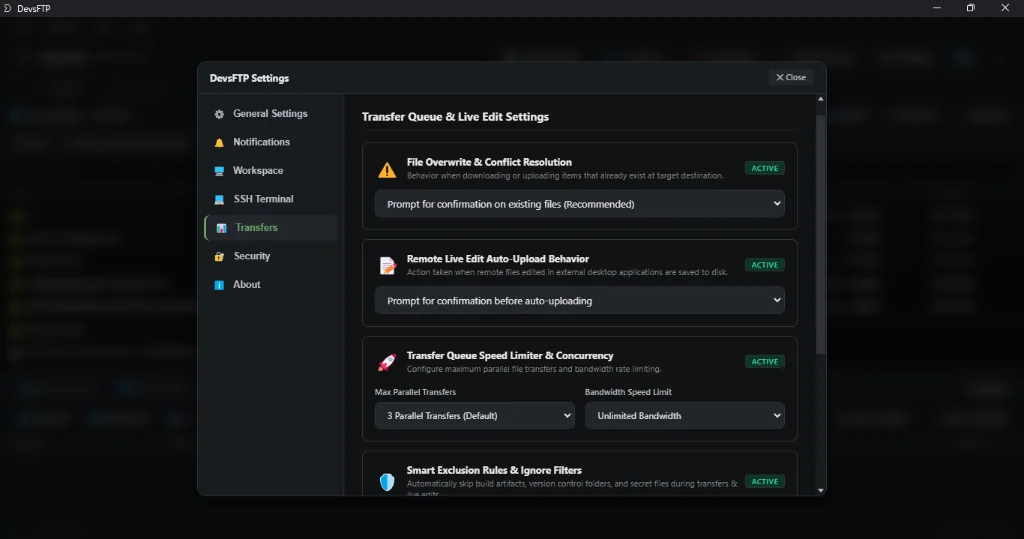
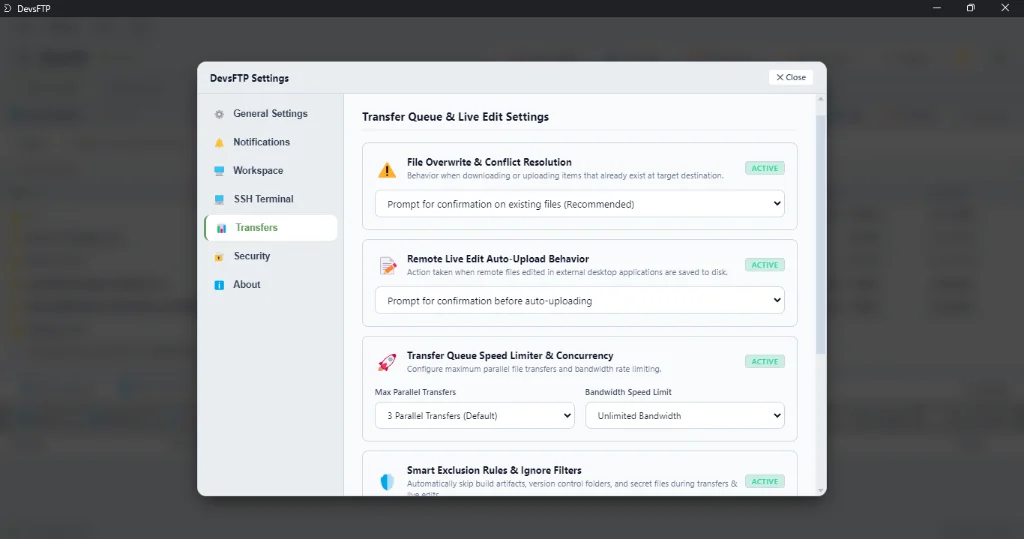
DevsFTP includes an enterprise transfer engine capable of maximizing multi-gigabit connections while offering fine-grained bandwidth throttling so file transfers never disrupt your video calls or gaming.
Configurable Concurrency Workers (1 to 10 Streams)
In the Transfer Queue footer toolbar, click the Concurrency selector. You can configure between 1 and 10 parallel transfer workers. Transferring hundreds of small files with 5–8 concurrent workers is up to 10× faster than traditional single-threaded FTP clients.
Live Bandwidth Limiter
Need to cap upload or download bandwidth? Click the Speed Limit dropdown on the transfer bar to restrict speed to 10 MB/s, 5 MB/s, 1 MB/s, 512 KB/s, or 256 KB/s. DevsFTP throttles stream buffers in real time without dropping active socket connections.
Automation
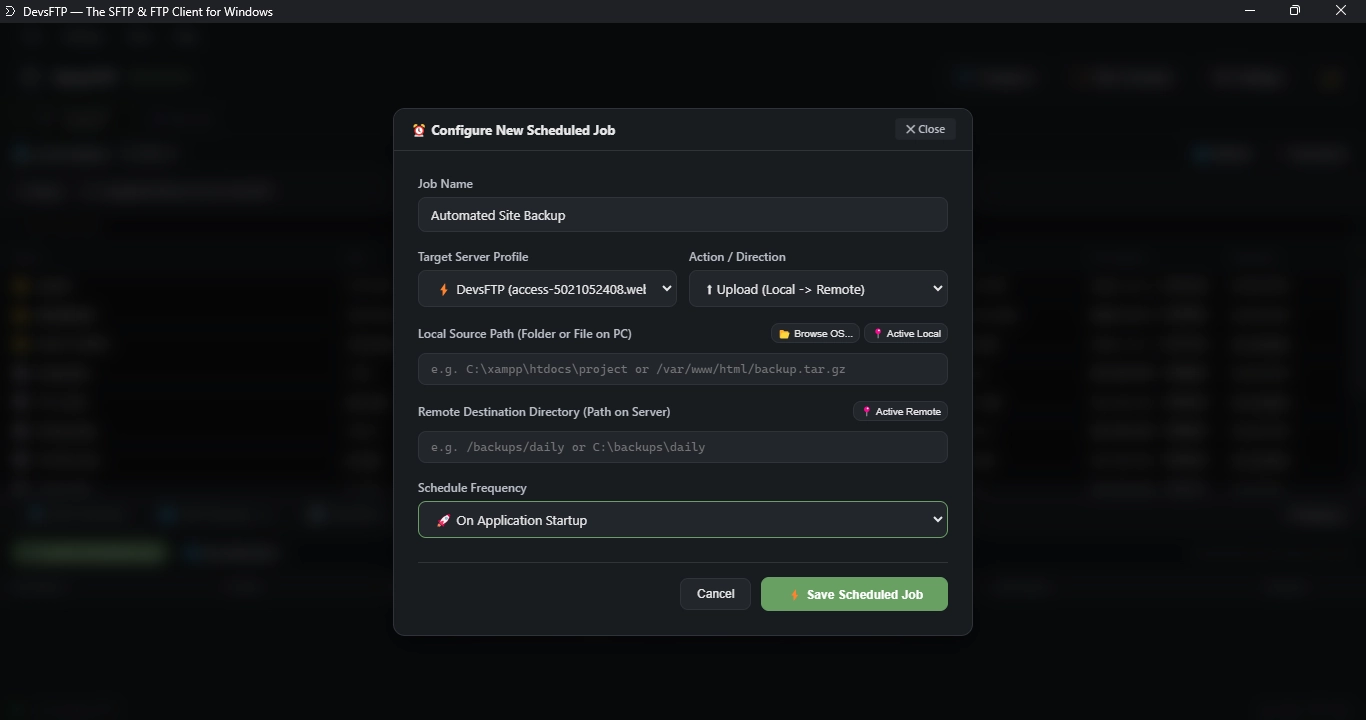
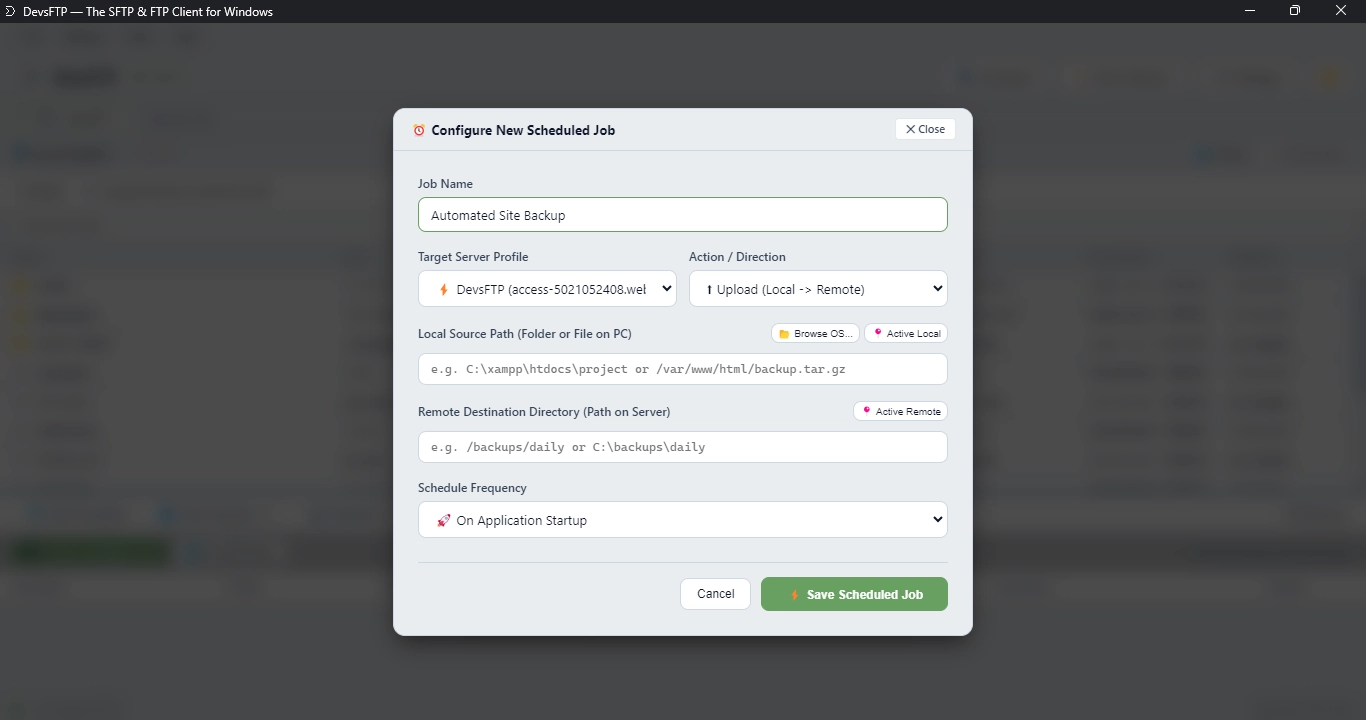
17. Background Sync Automation (Scheduled Jobs)
Automate your regular folder synchronizations with DevsFTP's built-in Background Sync Scheduler. Set up recurring backup or deployment jobs that run automatically on fixed intervals.
Setting Up an Automated Sync Job
-
1
Click Tools > Scheduled Jobs... from the top application menu.
-
2
Click ➕ Add New Job. Choose your target connection profile, local folder, and remote destination path.
-
3
Select the synchronization direction: Local → Remote, Remote → Local, or Bidirectional.
-
4
Configure the schedule interval: choose from preset intervals (Every 5 minutes, 15 minutes, hourly, daily) or enter a standard cron expression.
-
5
Click Save Job. The background runner manages execution silently and records transfer statistics in the job history log.
Advanced Networking
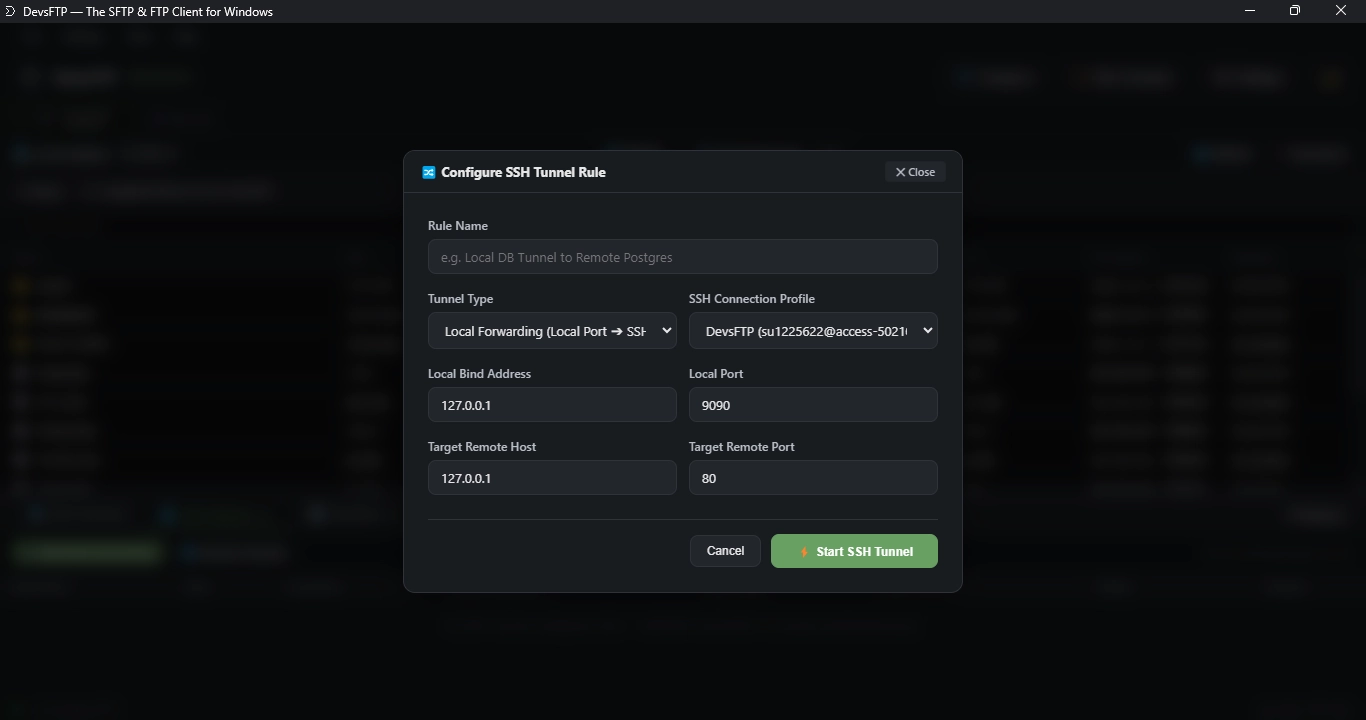
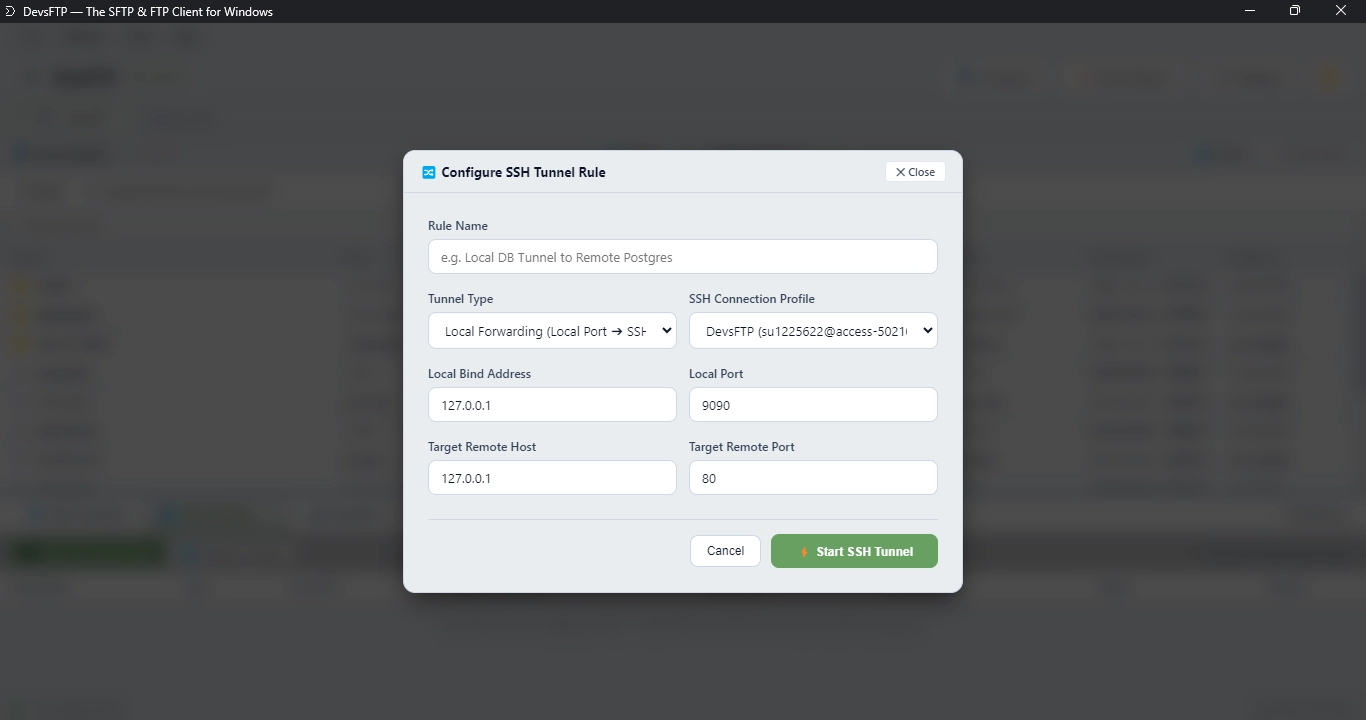
18. SSH Port Forwarding & SOCKS5 Tunnels
Connect directly to remote MySQL, PostgreSQL, Redis, or internal microservices securely using DevsFTP's built-in SSH Port Forwarding Engine.
Tunneling Modes Explained
- Local Port Forwarding (
-L): Forwards a local port on your workstation (e.g. localhost:3307) to a private service on the remote server (e.g. 127.0.0.1:3306). Allows your local database tools (DBeaver, TablePlus, pgAdmin) to connect securely.
- Remote Port Forwarding (
-R): Forwards a port on the remote server back to your local development machine. Perfect for sharing local webhooks or testing APIs with external services.
- Dynamic SOCKS5 Proxy (
-D): Opens a local SOCKS5 proxy server. Configure your web browser or development tools to route all network traffic through the remote server's IP address.
Developer Tools
19. Using the Integrated SSH Terminal
Never switch back and forth between your FTP client and PuTTY or Windows Terminal again. DevsFTP features a hardware-accelerated, full-featured embedded Xterm.js SSH Console.
Terminal Features & Controls
- Instant Shell: Click the SSH Terminal tab or press Ctrl+` to launch an interactive bash/zsh shell session on the currently connected SFTP server.
- Rich Colors & Full Keyboard Support: Full support for ANSI colors, interactive terminal programs (
htop, vim, nano, tmux), and standard shortcuts.
- Configurable Scrollback: Customize your terminal scrollback history (default: 5,000 lines), font family, and font size in Settings > SSH Terminal.
Security • Cryptography
20. Enabling Master Password Vault Protection
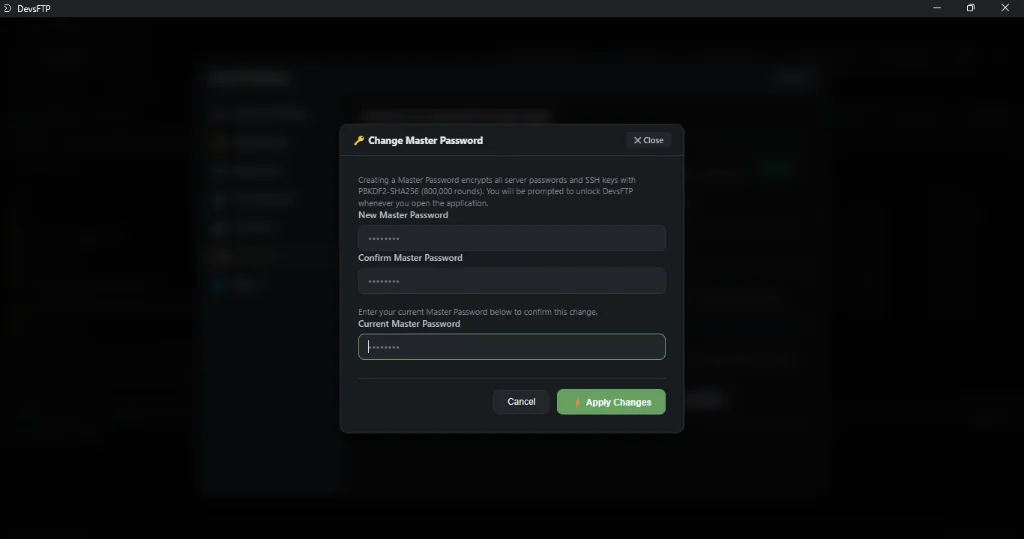
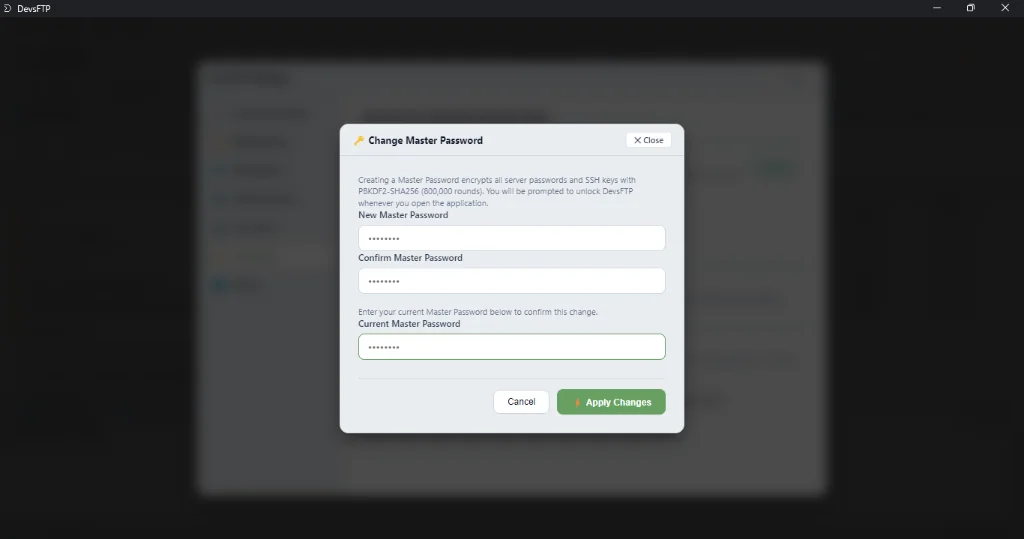
Protect your saved passwords, API keys, and SSH private key passphrases from workstation memory dumps and physical theft by setting an enterprise Master Password.
How the Vault Works
When Master Password protection is enabled:
- DevsFTP derives a 256-bit encryption key using PBKDF2 with 800,000 SHA-256 iterations and a random 32-byte salt.
- All server credentials and keys in
profiles.json are encrypted with authenticated AES-256-GCM.
- When launching DevsFTP, you are prompted to enter your master password. Credentials cannot be read or decrypted by malware or unauthorized users without it.
⚠️ Important: Master Password Recovery
Because DevsFTP is zero-telemetry and offline-first, there are no remote servers and no backdoor password resets. Store your Master Password securely in your password manager!
Security • Network Defense
21. SSH Host Key Verification & Anti-MITM Alerts
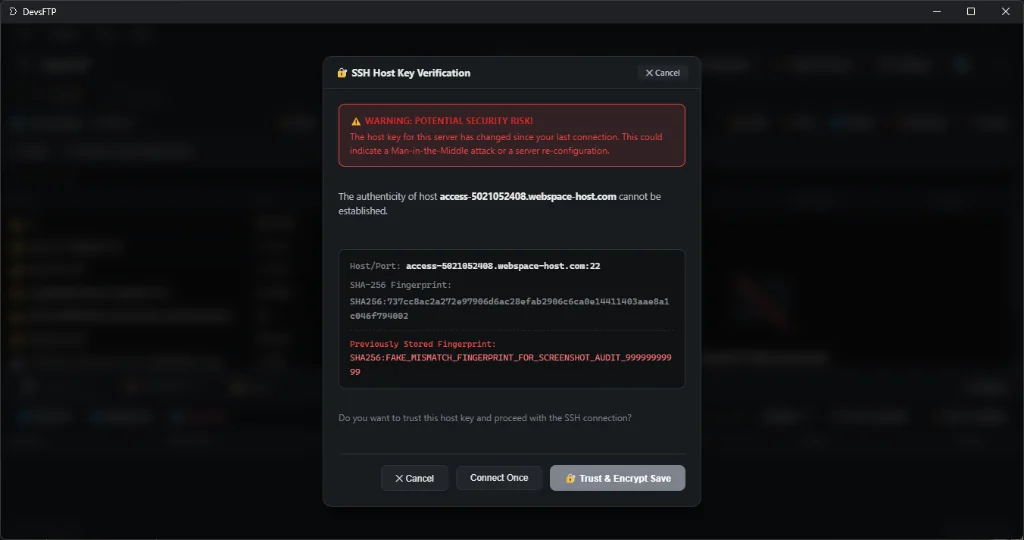
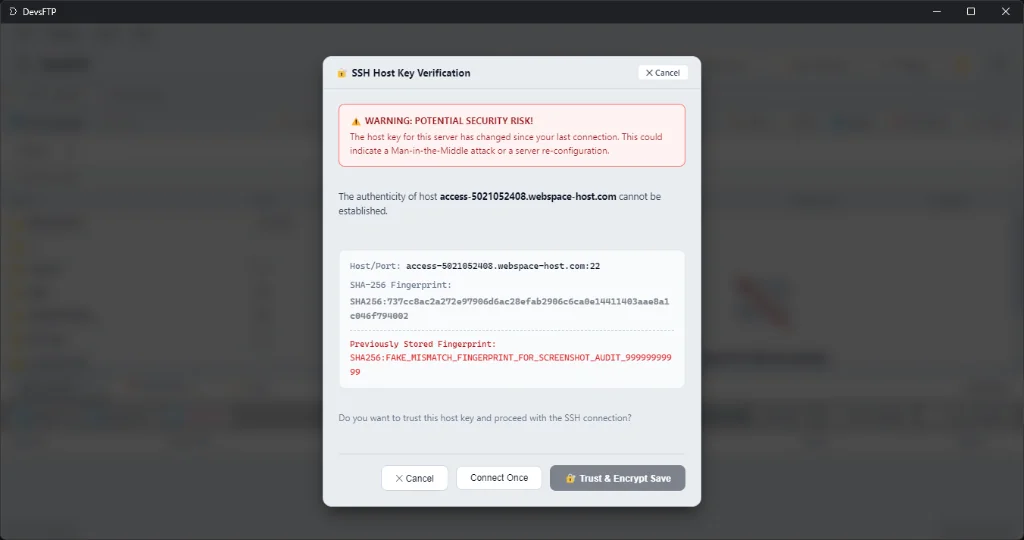
Whenever you connect to an SFTP server, DevsFTP checks the server's public cryptographic fingerprint against your local known_hosts.json file to defend against Man-In-The-Middle (MITM) attacks.
What to Do When the Warning Appears
- First-Time Connection: If you are connecting to a new server for the first time, DevsFTP displays the SHA-256 fingerprint. Verify this fingerprint with your server administrator or hosting provider, then click Accept & Save.
- Fingerprint Mismatch (Warning!): If a previously saved server presents a different host key, DevsFTP triggers a red Anti-MITM warning modal. This can happen if the server was recently re-imaged, or if someone on your network is attempting to intercept your traffic. Do NOT accept unless you have confirmed with your sysadmin that the server was legitimately reinstalled.
Troubleshooting
22. Common FAQs & Troubleshooting Solutions
Quick answers and step-by-step solutions to common configuration, network, and file system challenges.
Why am I getting "Connection timed out" or "Connection refused"?
Connection timeouts usually indicate that network packets cannot reach the target server. Common causes include:
- Firewall / Security Groups: Ensure port 22 (SFTP) or port 21 (FTP) is open in your cloud firewall (e.g. AWS Security Group, DigitalOcean Firewall, or UFW).
- Wrong Port: Many hosting providers assign non-standard SSH ports (such as
2222 or 7822) to prevent brute-force bot attacks. Verify your port in your hosting control panel (cPanel, Plesk, etc.).
- Corporate / Hotel Wi-Fi Blocking: Some restrictive Wi-Fi networks block outbound port 22. Try connecting via a mobile hotspot or an SSH VPN/tunnel.
Why does my SSH key return "Permission denied (publickey)"?
This error occurs when the remote SSH daemon rejects your private key. Check the following:
How do I fix AWS S3 "SignatureDoesNotMatch" or "AccessDenied"?
S3 SigV4 requires exact region and credential alignment:
- Region Mismatch: S3 buckets are tied to specific regions. If your bucket was created in
us-west-2, you must select us-west-2 in your profile, not us-east-1.
- System Clock Drift: AWS SigV4 signatures expire if your local computer's clock differs from UTC by more than 15 minutes. Ensure your Windows or Linux system clock is synchronized with an internet time server.
- IAM Permissions: Ensure your AWS IAM user has
s3:ListBucket, s3:GetObject, and s3:PutObject permissions attached.
Why do I see "EBUSY: resource busy or locked" on Windows during transfer?
On Windows, third-party software (such as antivirus scanners, Windows Search indexer, or cloud sync clients like OneDrive/Dropbox) occasionally locks temporary files while they are being renamed from .part to their final name.
DevsFTP includes an automated 3-step exponential backoff retry handler that waits for the external lock to release, guaranteeing clean file writes without corrupting downloads.
How can I view hidden dotfiles (like .htaccess or .env)?
DevsFTP automatically displays all dotfiles (.htaccess, .env, .gitignore, etc.) by default in both local and remote directory browsers. No extra shortcuts or toggles are needed to view or edit your hidden configuration files.
Support
23. Protocol Diagnostic Logs & Bug Reporting
Encountered an unexpected protocol error or need to inspect raw SFTP / FTP server exchange packets? DevsFTP provides an embedded real-time protocol diagnostics console.
How to Inspect Logs & Submit an Issue
-
1
Click the Terminal & Logs drawer at the bottom of the workspace to expand raw connection logs in real time.
-
2
All sensitive passwords and authentication keys are automatically scrubbed and redacted before appearing in log viewers.
-
3
To submit a bug report, select Help > Report Issue from the top menu. Enter a description and click Submit Diagnostic Trace to send anonymized crash logs directly to the DevsFTP engineering team.